NeuralDSP logoNeuralDSP logo
Darkglass Ultimate

01
Darkglass Ultimate

The Darkglass sound has defined modern bass tone for more than a decade, with its powerful low end, clarity, and unmistakable character.

In 2018, we brought that sound into the digital world with Darkglass Ultra, capturing the essence of the B7K Ultra and Vintage Ultra preamps inside a plugin.

Built on that foundation, Darkglass Ultimate delivers a complete creative platform for bass. From subtle warmth to aggressive drive, it adapts to any musical context while preserving the authority, clarity, and character that define the Darkglass sound.

We proudly present to you, Darkglass Ultimate.

02
Plugin components

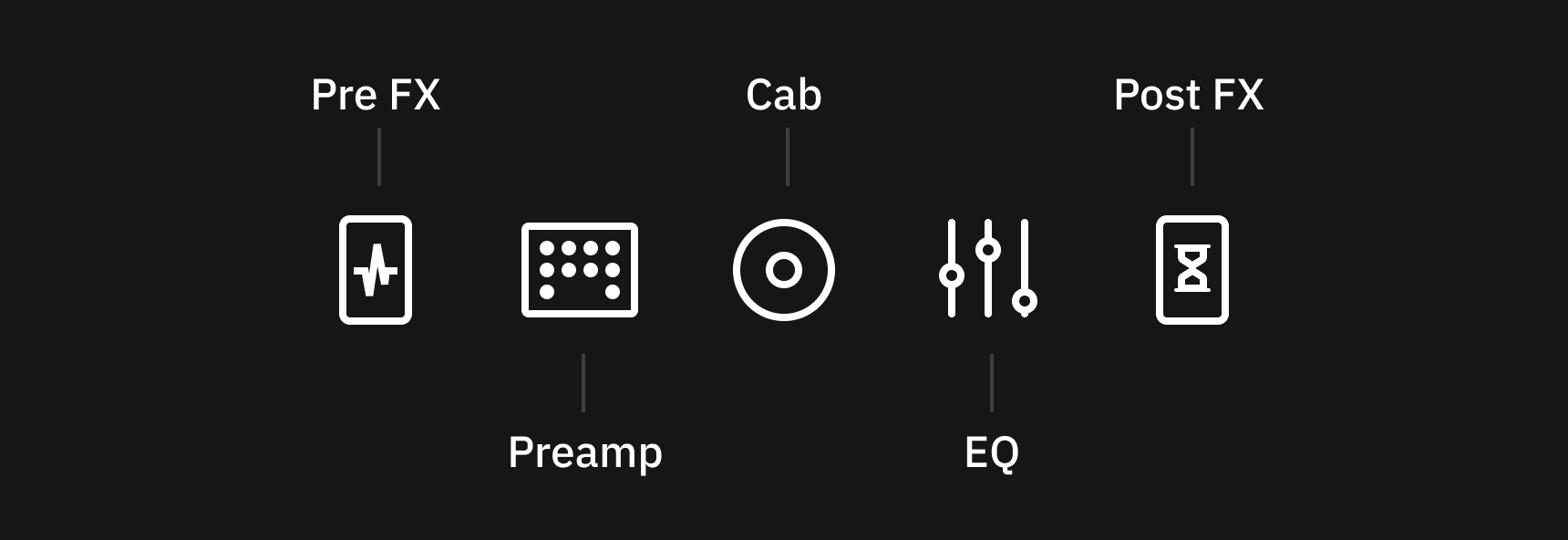
The different sections in the Plugin are accessible via the top navigation.

Pre FX

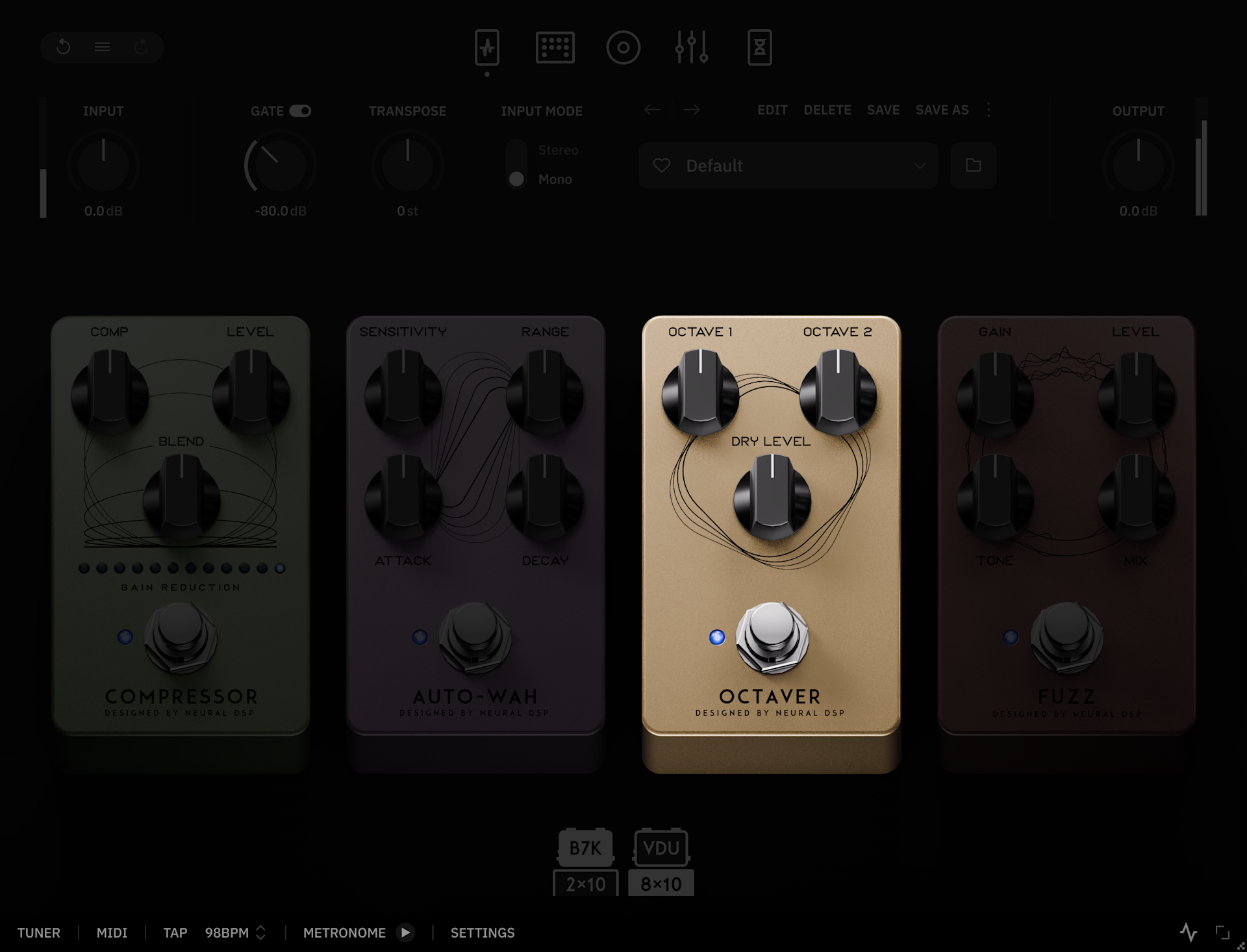
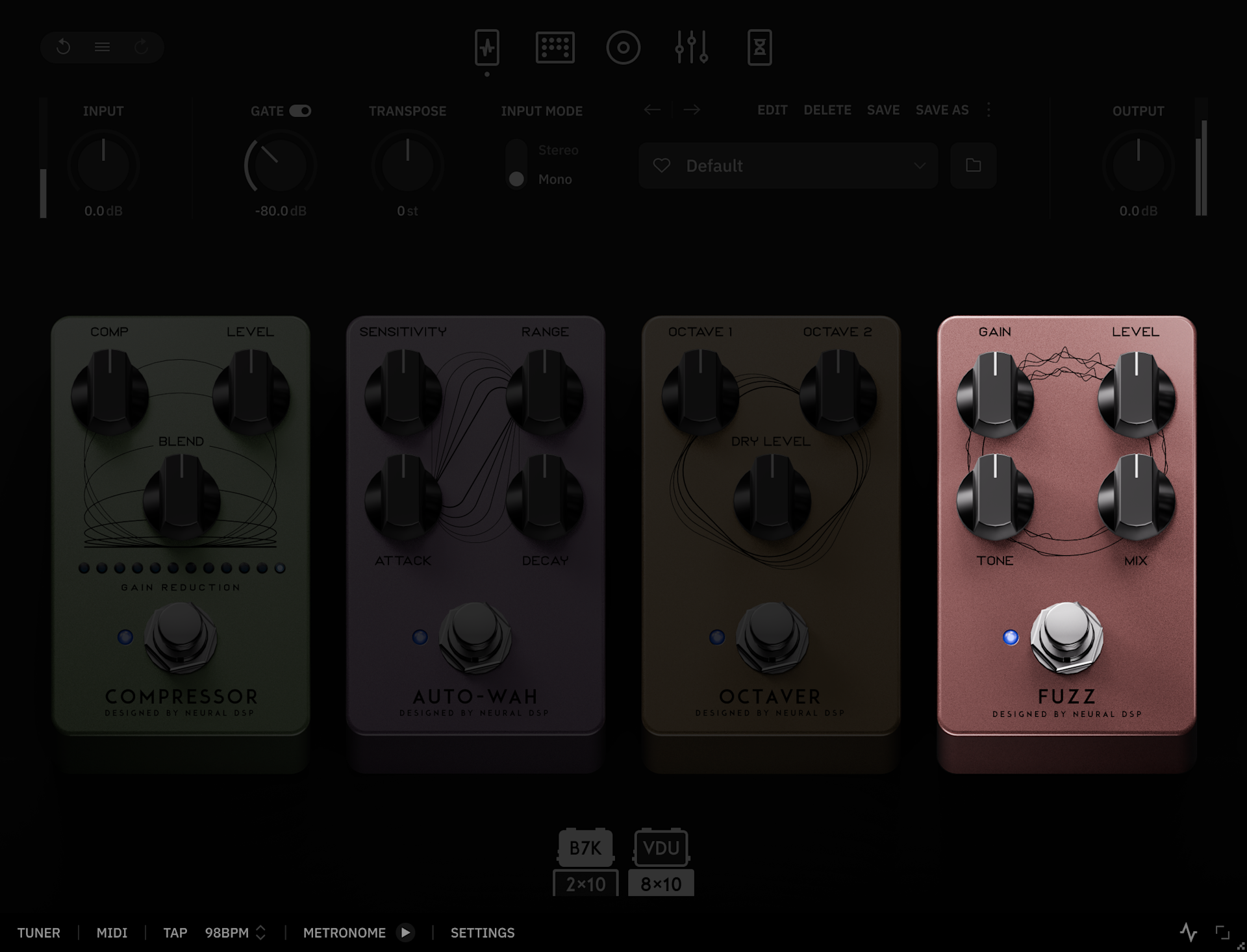
This section consists of four effects in series which can be used either separately or combined.

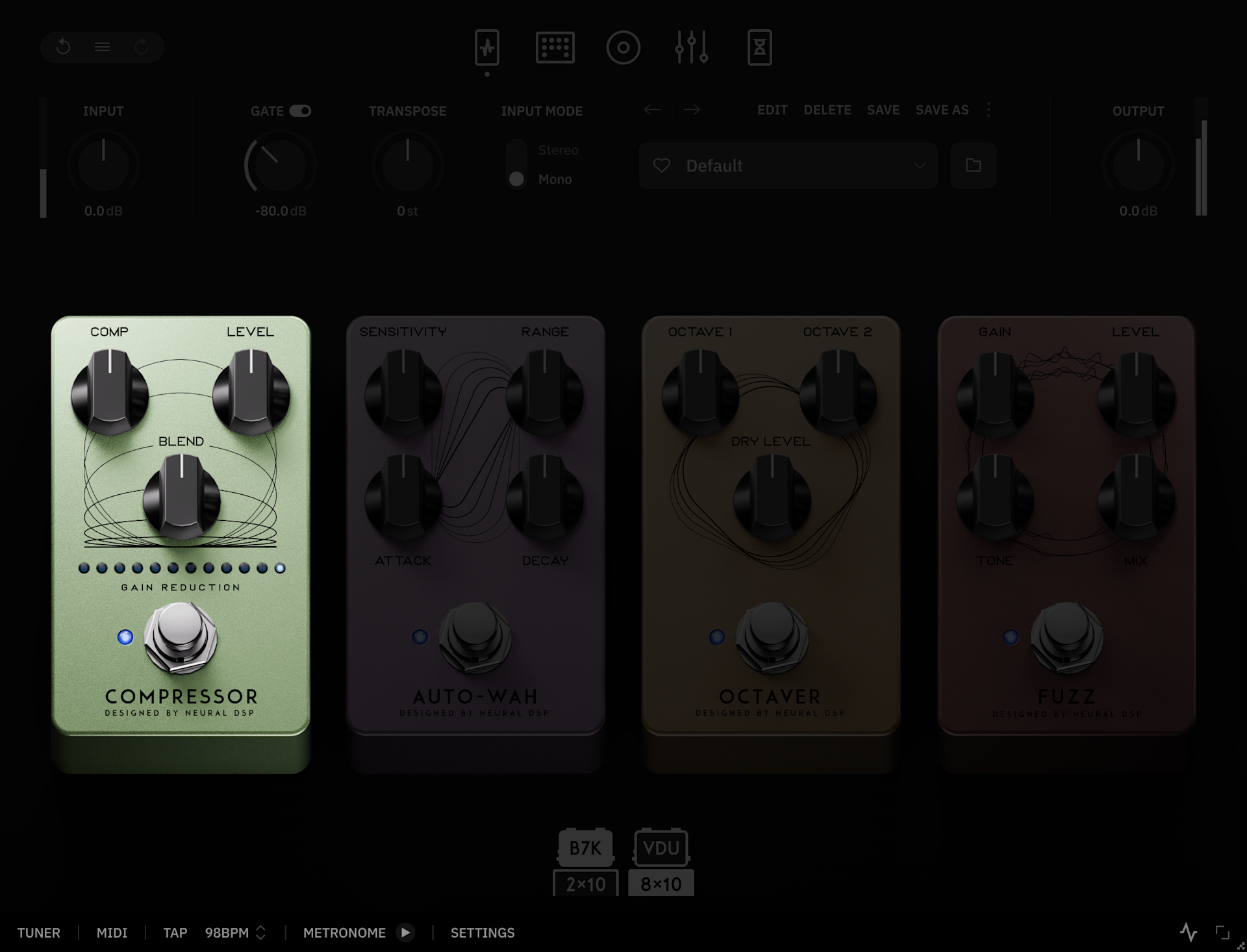
Compressor

Inspired by a classic FET-style circuit, this pedal delivers a fast response, making it well-suited for controlling dynamics at the start of the signal chain. The added 'Blend' control allows you to dial in the desired amount of compression - an essential feature for bass tones, helping prevent overcompression of the low end.

  1. Comp Knob: Determines the amount of compression applied by the pedal

  2. Level Knob: Sets the output level of the Compressor pedal

  3. Blend Knob: Controls how much dry signal is blended with the compressed signal

  4. Bypass Switch: Enables the Compressor pedal

Hint:

Parallel compression can be a powerful tool for achieving punchy bass tones.

Start by turning the Mix control fully up, then dial in a heavily compressed sound that intentionally smashes dynamics and brings out the finer details of your playing. Once set, gradually lower the Mix control to reintroduce the dry signal and restore natural dynamics.

With such settings, you'll retain the attack and dynamics of the dry signal while adding the sustain and weight of the compressed tone.

Auto-Wah

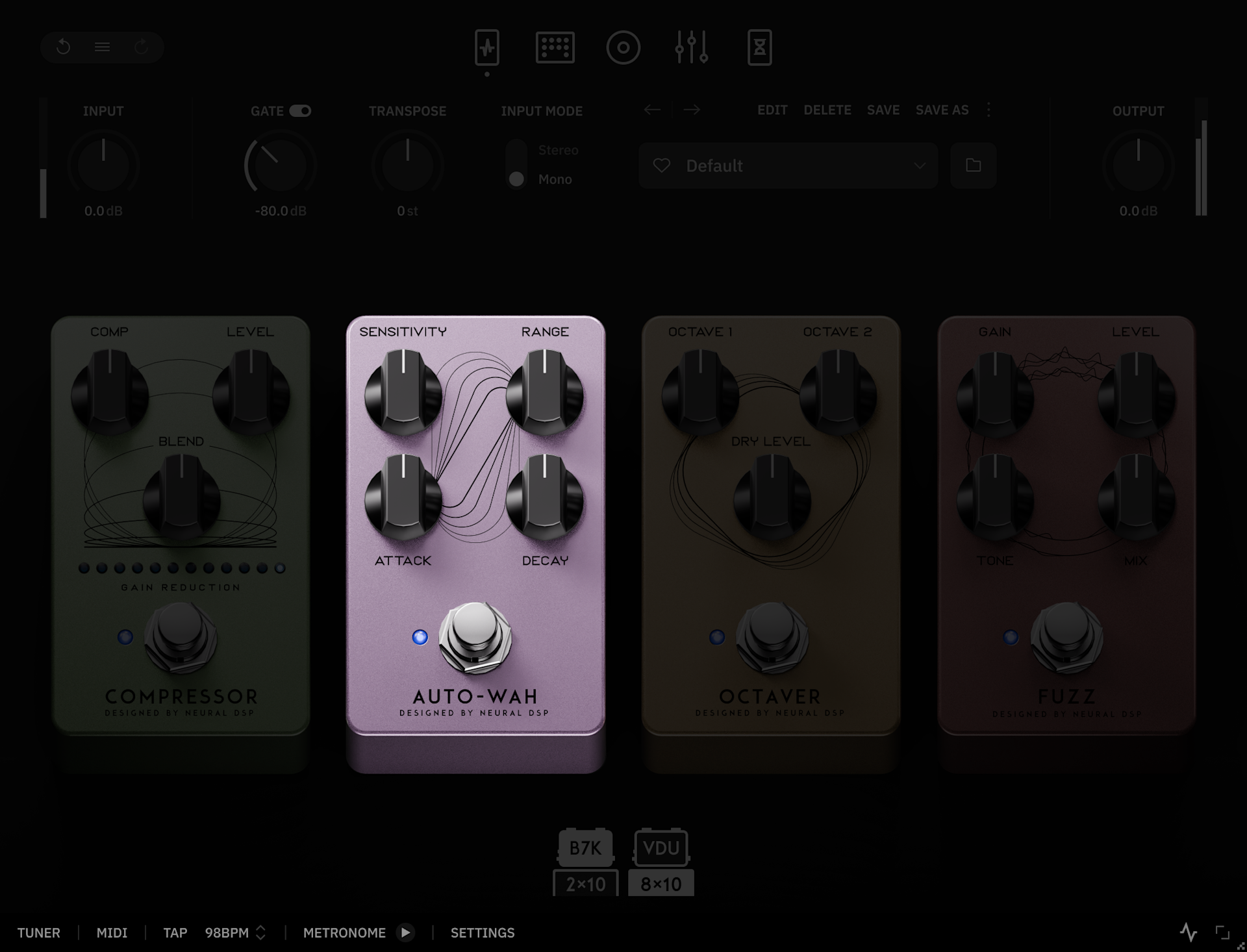
An envelope filter that reacts to your playing dynamics, automatically sweeping its frequency to create a responsive, wah-like effect that moves with your attack.

  1. Sensitivity Knob: Sets the sensitivity of the envelope.

  2. Range Knob: Determines the minimum cutoff frequency of the envelope filter

  3. Attack Knob: Sets the attack time of the envelope

  4. Decay Knob: Sets the release time of the envelope

  5. Bypass Switch: Enables the Auto-Wah pedal

Hint:

  • In Darkglass Ultimate, the Auto Wah is placed after the compressor by design. Using compression beforehand helps control dynamics, resulting in a more consistent response from the effect.

  • Try varying the amount of compression to observe how it interacts with the Auto-Wah Sensitivity and how the filter opens and closes.

Octaver

An Octaver pedal that offers precise tracking with the ability to simultaneously shift your signal down by 2 octaves.

  1. Octave 1 Knob: Sets the volume of the -1 octave signal

  2. Octave 2 Knob: Sets the volume of the -2 octave signal

  3. Dry Level Knob: Sets the volume of the dry signal

  4. Bypass Switch: Enables the Octaver pedal

Hint:

Use the Level knobs to dial the perfect blend of the desired low-end. Oct -2 is two full-octaves below the source signal, equivalent to -24 semitones.


Fuzz

Modeled after a Russian-made fuzz pedal - a classic favoured by bass players for its massive low end, thick sustain, and naturally compressed character. The integrated Mix control allows for blending the dry signal with the processed sound, which helps maintain low-end definition and overall clarity.

  1. Gain Knob: Sets the amount of distortion applied to the signal

  2. Level Knob: Sets the output level of the pedal

  3. Tone Knob: Adjusts the frequency response of the pedal

  4. Mix Knob: Sets the balance between the dry and the distorted signal

  5. Bypass Switch: Click to activate/deactivate the Fuzz pedal

Preamp

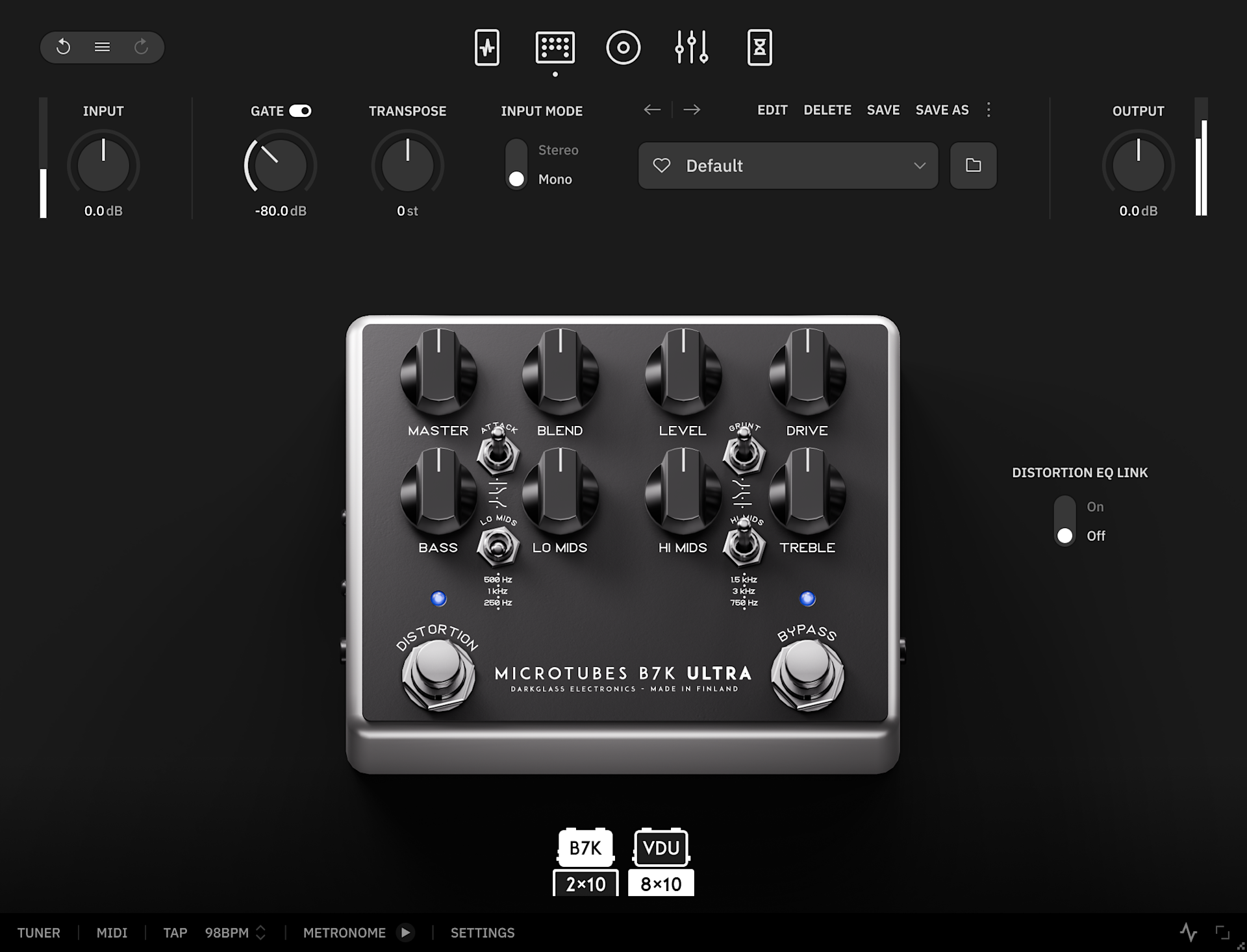
This section consists of the Darkglass® Microtubes® B7K preamp and the Vintage Ultra preamp, featuring two distinct sonic signatures from the Darkglass Suite.

  1. Master Knob: Controls the overall output level of the preamp

  2. Blend Knob: Controls how much dry signal is blended with the compressed signal

  3. Level Knob: Sets the level of the distorted signal

  4. Drive Knob: Adjusts the amount of distortion applied to the signal

  5. Attack Switch: Boosts or cuts high frequencies prior to the clipping stage

  6. Grunt Switch: Boosts or cuts low frequencies prior to the clipping stage

  7. Bass Knob: Adjusts the bass frequency response of the preamp

  8. Lo Mids Knob: Adjusts the low mids frequency response of the preamp

  9. Lo Mids Switch: Determines the center frequency for the lo-mid EQ

  10. Hi Mids Knob: Adjusts the high mids frequency response of the preamp

  11. Hi Mids Switch: Determines the center frequency for the hi-mid EQ

  12. Treble Knob: Adjusts the high frequency response of the preamp

  13. Distortion Switch: Enables the Distortion section of the preamp

  14. Bypass Switch: Enables the Darkglass Pedal

Hints:

  • On both (B7K and Vintage Ultra pedal), the Blend, Level, Attack, Grunt and Drive parameters will not affect the sound when Distortion is disabled.

  • The Distortion EQ Link controls the behavior of the on-board 4-band EQ controls when engaging or disengaging the Distortion switch, allowing you to choose between either a unified setting or entirely independent EQ settings for your clean and distorted tones.

    • Switch On to synchronize the EQ settings. Any adjustments made to the EQ will universally affect both modes.

    • Switch Off to make the EQ settings between Distortion and non-Distortion modes completely independent. This allows you to dial in a different EQ setting for either mode.

Cab

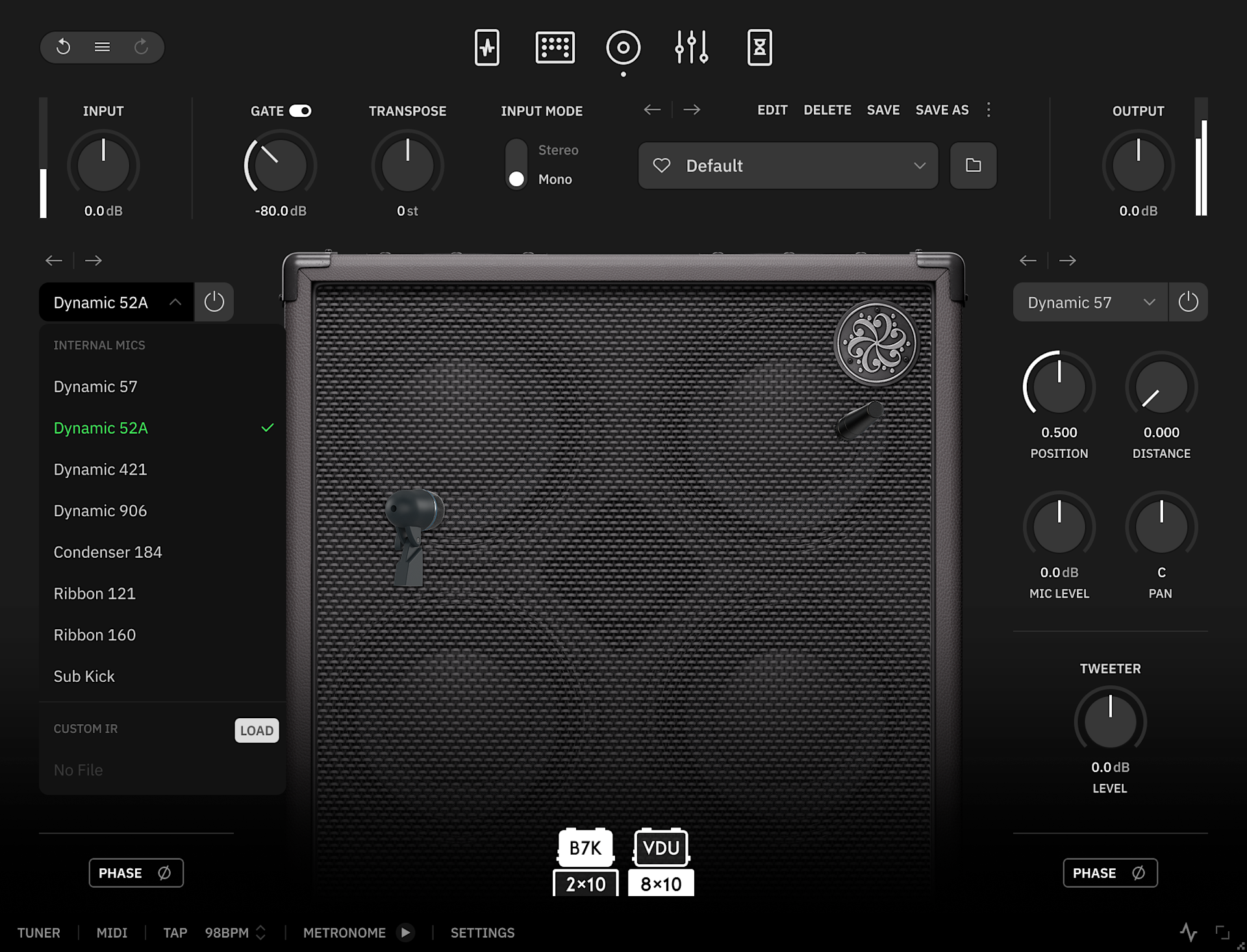
A comprehensive cabinet simulation module that features virtual mics that can be positioned around the speakers. Additionally, in this section, you can load your own Impulse Response files.

What is an Impulse Response?

An Impulse Response is the measurement of a dynamic system reacting to an input signal. This information can be stored in WAV files that can be used to recreate the sound of spaces, reverberations, and instrument speakers.

Cab Section Controls

  1. Microphone Selector Drop Down Menu: Click to select between the factory microphones or loading your own IR files.

  2. Navigation Arrows: Click to cycle through factory microphones and custom IRs.

  3. Bypass Button: Click to bypass/enable the selected microphone or custom IR.

  4. Position and Distance Knobs: Control the position and distance of the factory microphones around the speaker cone.

  5. Mic Level Knob: Controls the volume level of the selected mic/IR.

  6. Pan Knob: Controls the output panning of the selected mic/IR.

  7. Tweeter Knob: Controls the output level of the tweeter.

  8. Phase Button: Inverts the phase of the selected mic/IR.

Hints:

  • Microphones’ position can also be controlled by dragging the microphones to the desired spot with the mouse. The Position and Distance knobs will reflect these changes accordingly.

  • Tweeter Level is disabled on Sub Kick and Custom IR.

  • The 8x10 cab features a dedicated 'Bass Reflex' microphone option, designed to capture the cabinet’s bass port using a Condenser U67 mic for a massive low-end response. Pair it with a more aggressive mic to add extra weight. In a studio setting, these signals would require manual phase alignment, but in the plugin, the IRs are already aligned to preserve transient response.

How can I load custom IR files on Neural DSP plugins?

Click on the Microphone Selector and select Load next to the “Custom IR” field. After that, use the browser window to search and load your custom IR file. Once the IR is loaded, you can adjust its Level, Pan, and Phase. Using the navigation arrows above the Microphone Selector while a custom IR is loaded will cycle through all the IR files in that folder.

Info:

  • Position and Distance knobs are disabled when loading custom IR files.

  • The path location of the latest custom IR used is remembered by the plugin. User presets that use custom IRs also save this path data, allowing you to easily recall them later.

EQ & Comp Section

Graphic EQ

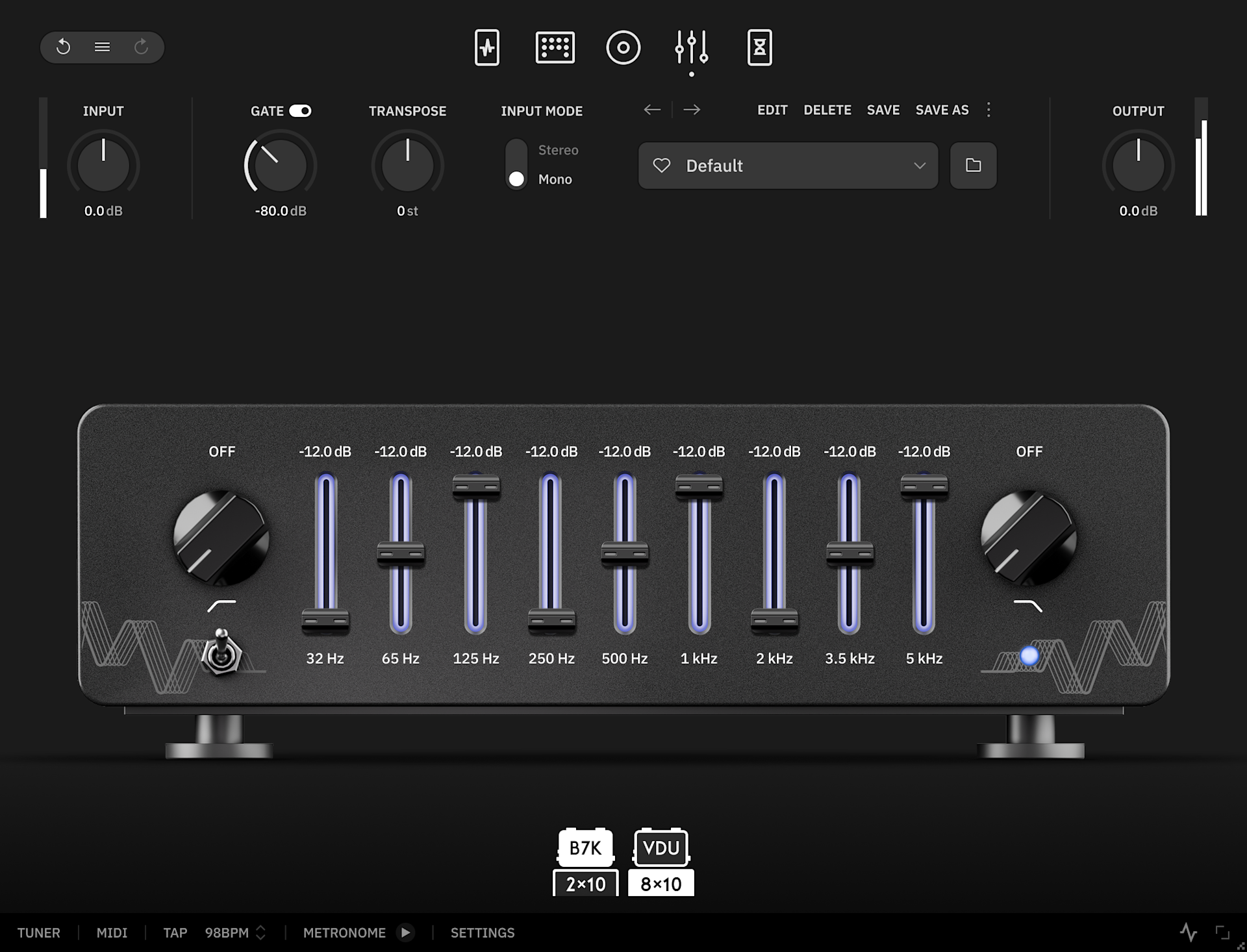
This section features a 9-Band Graphic equalizer with High-Pass and Low-Pass filters, giving you precise control over different frequency ranges.

  1. Frequency Sliders: Each slider adjusts the gain of a specific range of frequencies (Band). Click-and-drag the sliders up or down to increase or decrease their volume +/- 12dB.

  2. HPF Knob: Sets the cutoff frequency of the high-pass filter. Increase to remove low frequencies.

  3. LPF Knob: Sets the cutoff frequency of the low-pass filter. Decrease to remove high frequencies.

  4. Bypass Switch: Click to bypass/enable the Graphic EQ.

Info:

In this plugin, the EQ frequency bands have been carefully selected for bass, extending down to 32 Hz.

Post FX

Chorus

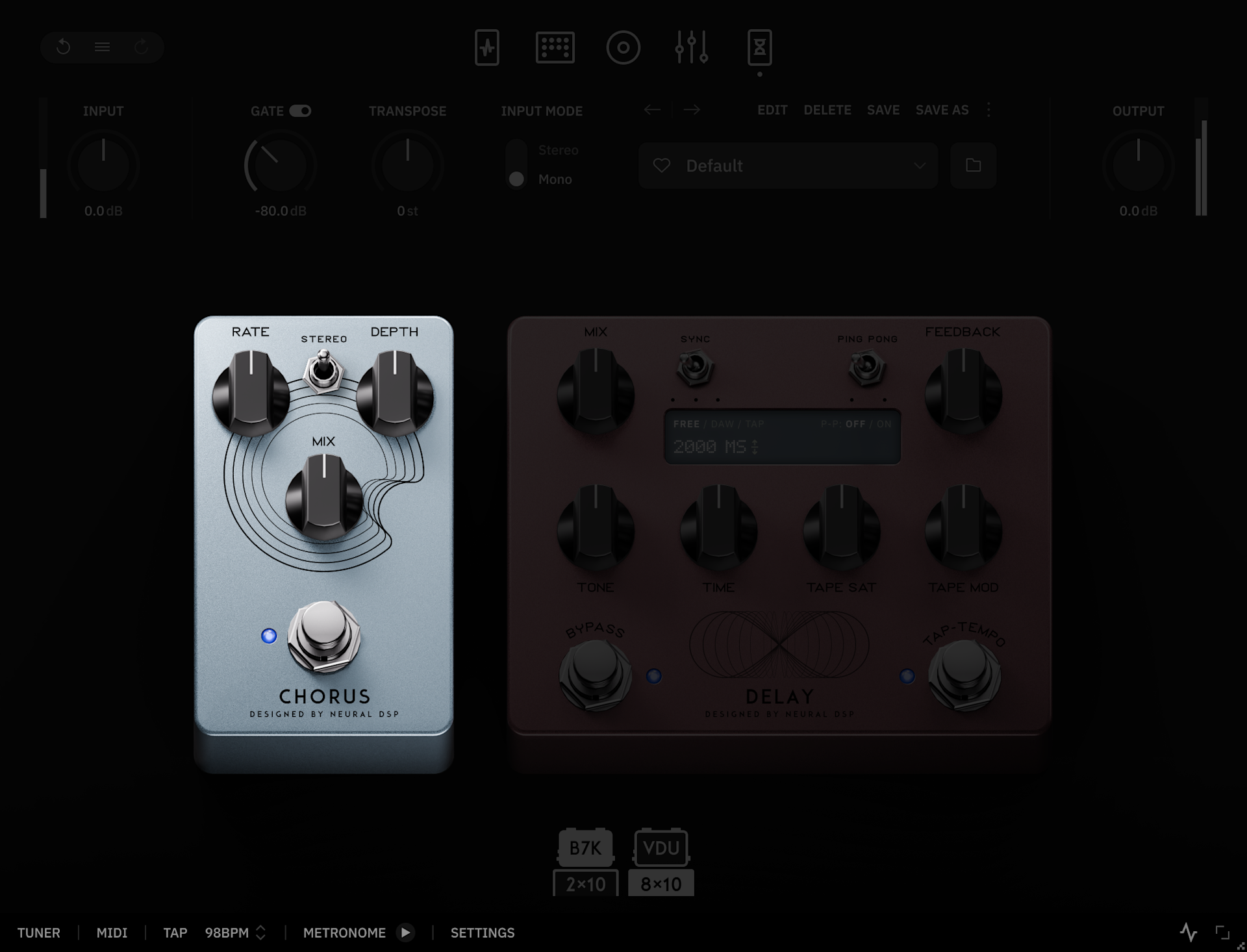
Inspired by a classic analog chorus circuit from the 1970s, this pedal delivers warm, dimensional modulation.

This enhanced version expands on the original design with true stereo operation while keeping low frequencies centered, preserving a solid and focused bass foundation.

  1. Rate Knob: Sets the speed of the chorus effect.

  2. Stereo Switch: Switches between mono and stereo operation modes.

  3. Depth Knob: Sets the intensity of the chorus effect.

  4. Mix Knob: Adjusts the balance between the dry and the chorused signals.

  5. Bypass Switch: Enables the Chorus pedal.

Hints:

The Mono/Stereo switch lets you select between a focused mono signal or a spacious stereo spread. In either mode, the low end remains solid and clear, preserving definition and preventing phase issues.


Delay

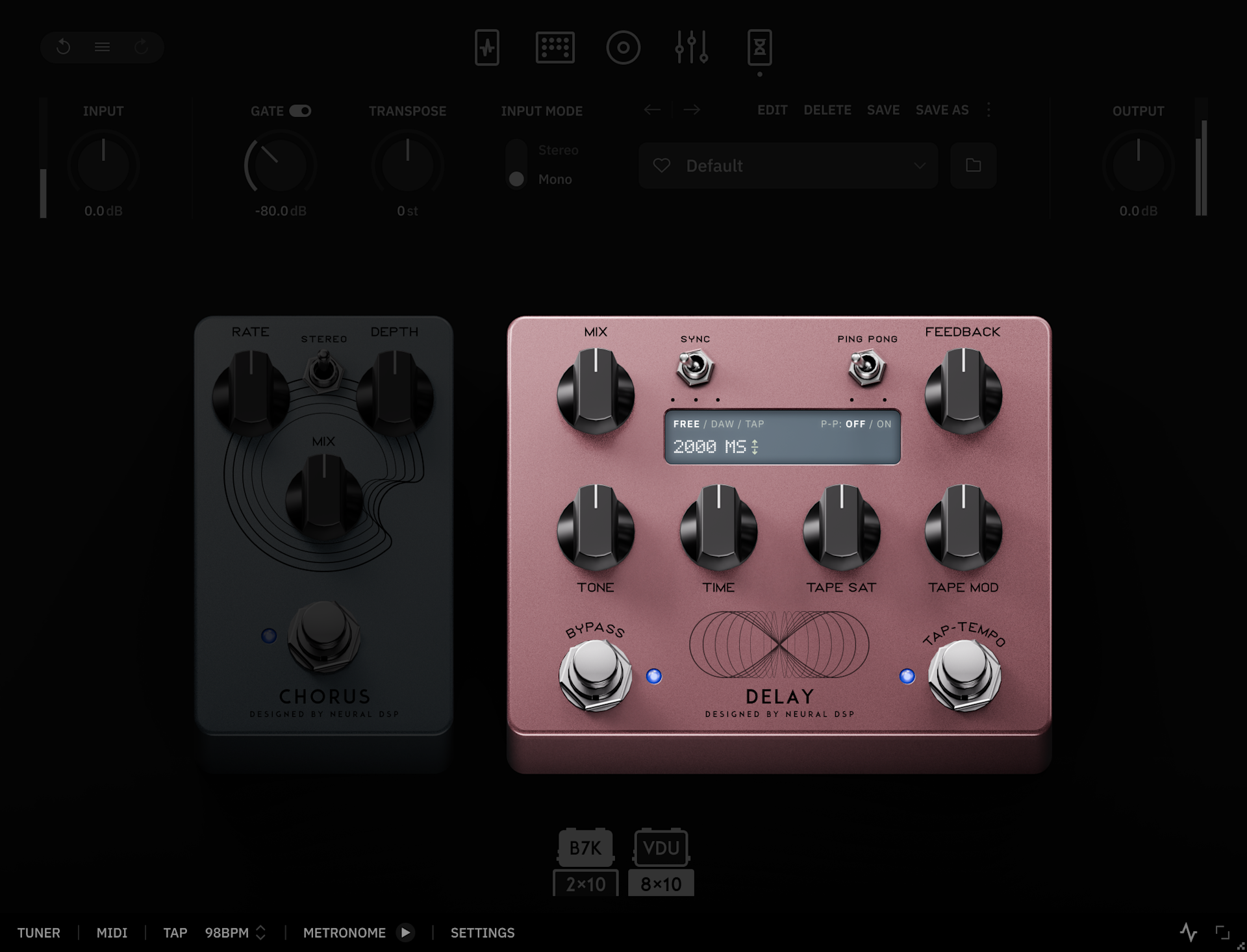
A simple Delay pedal with additional controls for Tape Saturation and Tape Mod for adding grit and modulation to the repeats.

  1. Mix Knob: Adjusts the mix amount between the dry and delayed signal.

  2. Sync Button: Selects delay timing mode: Free (manual), App/DAW tempo sync, or Tap tempo.

  3. Ping Pong Switch: Enables ping pong to alternate delay repeats between left and right channels.

  4. Feedback Knob: Controls how many times the echo repeats. Higher values create more repeats.

  5. Tone Knob: Controls the timbre of the delayed signal. Reduce to soften the repeats.

  6. Time Knob: Sets how long it takes for the echo to repeat after the original sound.

  7. Tape Sat Knob: Sets the gain of the tape saturation

  8. Tape Mod Knob: Sets the amount of the modulation applied to the delay line

  9. Bypass Switch: Click to activate/deactivate the Delay pedal.

  10. Tap Tempo Switch: Sets how long it takes for the echo to repeat after the original sound.

Hints:

  • The Delay Time ranges from 7ms to 6000ms when unsynced and from 1/64T to 1/1D when synced to the internal BPM.

  • On the Delay LCD screen, click the Delay Time value (Free) and Tempo value (Tap) to enter custom values with the keyboard. Additionally, click-and-drag them up and down to increase or decrease their values.

03
Global Features

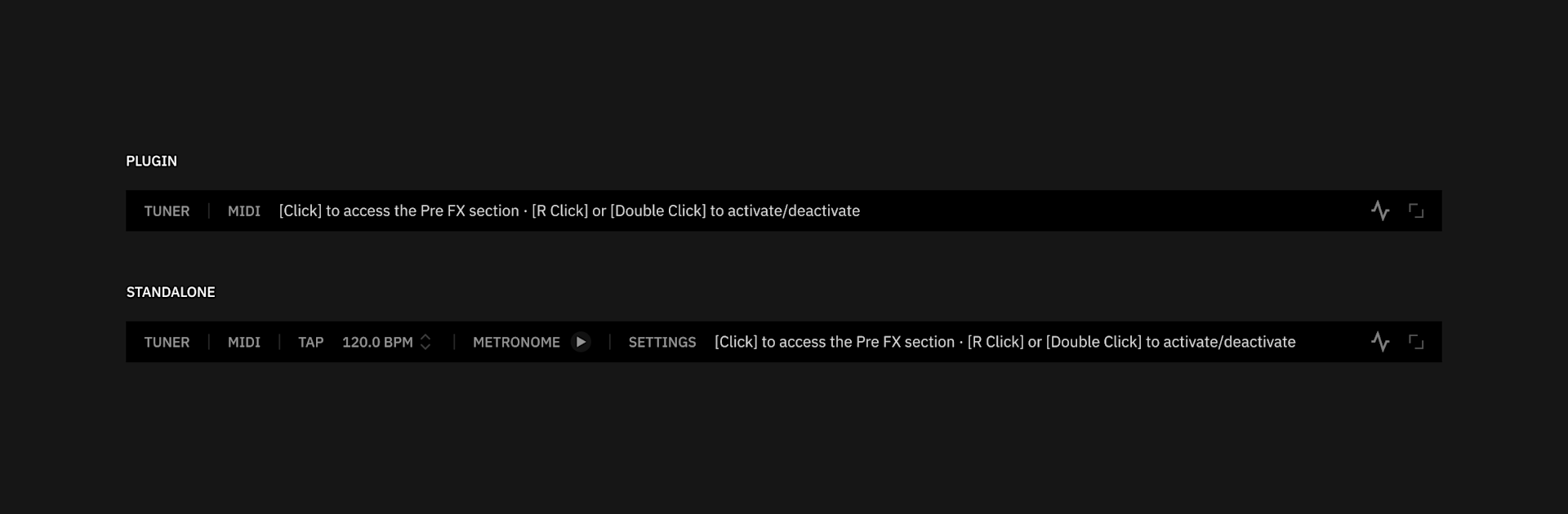
The plugin global features are organized into distinct sections accessible via icons located at the top and bottom of the user interface.

Utility bar

  • Input Knob: Adjusts the level of the signal being fed into the plugin.

  • Gate Knob: The noise gate helps to reduce unwanted noise or hum in your signal. The level of audio signal will be reduced when it drops below the set value.

  • Transpose Knob: Transposes the signal up or down in pitch by a constant interval (+/-12 semitones). Use it to easily change the tuning of your instrument. The transpose module is bypassed at its default position (0 st).

  • Input mode Switch: Toggles between Mono and Stereo input processing. The Doubler is disabled while in Stereo Input Mode.

  • Output Knob: Adjusts the level of the signal the plugin feeds out.

  • Parameter Lock: All top-bar Utility controls can be locked across presets; just hover your mouse/cursor over to it to see the lock icon.

  • Undo/Redo and History: Revert or restore to a past state by using either the Undo/Redo icons, or by navigating the Action History list by clicking the History icon.

Preset Manager

A Preset is a saved configuration of settings and parameters that can be recalled instantly. Neural DSP factory presets are an excellent starting point for your tones. After loading a preset, you can fine-tune the parameters across the different sections of the plugin to create a new tone that suits your needs.

Presets you make can be organized into folders and subfolders, making it easier to find and manage them.

  • Preset Dropdown Menu: Quick preset access. Click to open a dropdown list of all the Presets available. Use the navigation arrows above to cycle through presets.

  • Favorite: Adds the selected preset to your favorites folder for quick access.

  • Preset Browser: Access to the full preset browser experience.

  • Edit: Only available for user presets, use it to update the selected preset's name or tags.

  • Delete: Click to delete the currently loaded preset (factory presets cannot be deleted)

  • Save: Used to update a preset with the latest changes (indicated by a dirty state: an *asterisk in the preset name).

  • Save As: Used to save the current configuration as a new user preset.


Clicking the More button () will display additional features:

  • Import: Used to import Preset files from custom locations.

  • Reset: Click to make all parameters recall their default values.

  • Locate file: Click to find the preset's actual location in your computer. Neural DSP presets are stored as shareable, encrypted XML files.

Saving Presets

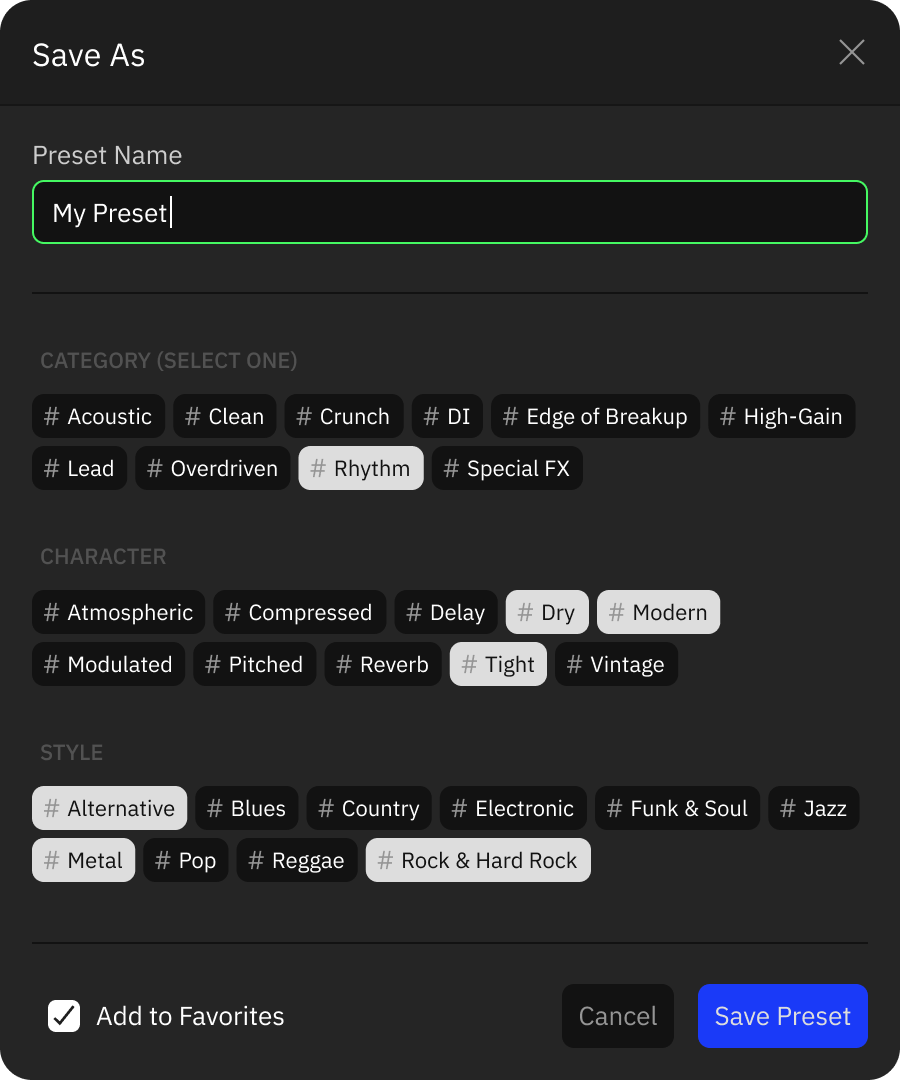
When creating or modifying sounds, you can save them as presets to access later on. The Save As window makes it easy to name, tag, and organize your presets.

Save As window with some preset tags selected

When saving a preset, the Save As window will appear with the following options:

  • Preset Name: Enter a custom name for your preset. By default, the name of the preset will match the name of the edited preset.

  • Tags: Add tags to make your presets easier to find. There are three types of tags available, each with fixed options: Category, Character, and Style.

    • Category: Choose a main category to describe the preset’s overall type (e.g. Clean, High-Gain, Lead, Rhythm, etc.) Only one category can be selected per preset.

    • Character: Add descriptive tags that define the tonal qualities or effects of the preset (e.g. Compressed, Atmospheric, Delay, Modulated, etc.) Multiple character tags can be applied.

    • Style: Select the musical style or genre the preset fits best (e.g., Metal, Pop, Jazz, Rock & Hard Rock, etc.). Multiple style tags can be applied.

  • Add to Favorites: Tick this box to automatically add the new preset to your favorites list for quick access.

About Tags

Factory presets are already tagged by default. For user presets, tags should be added manually during the saving process. Appropriate tagging helps when searching and filtering presets in the Preset Browser.

Preset Browser

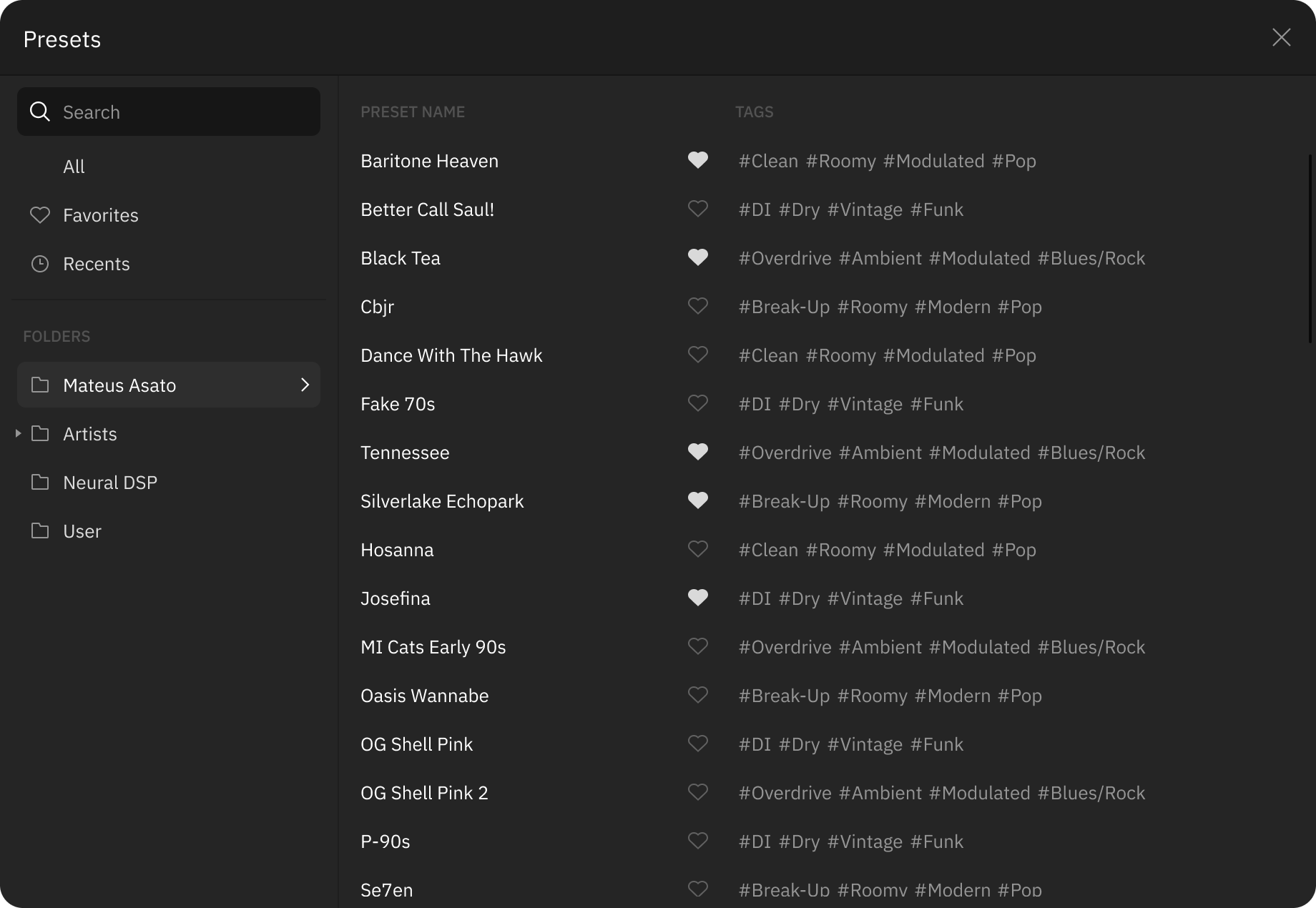
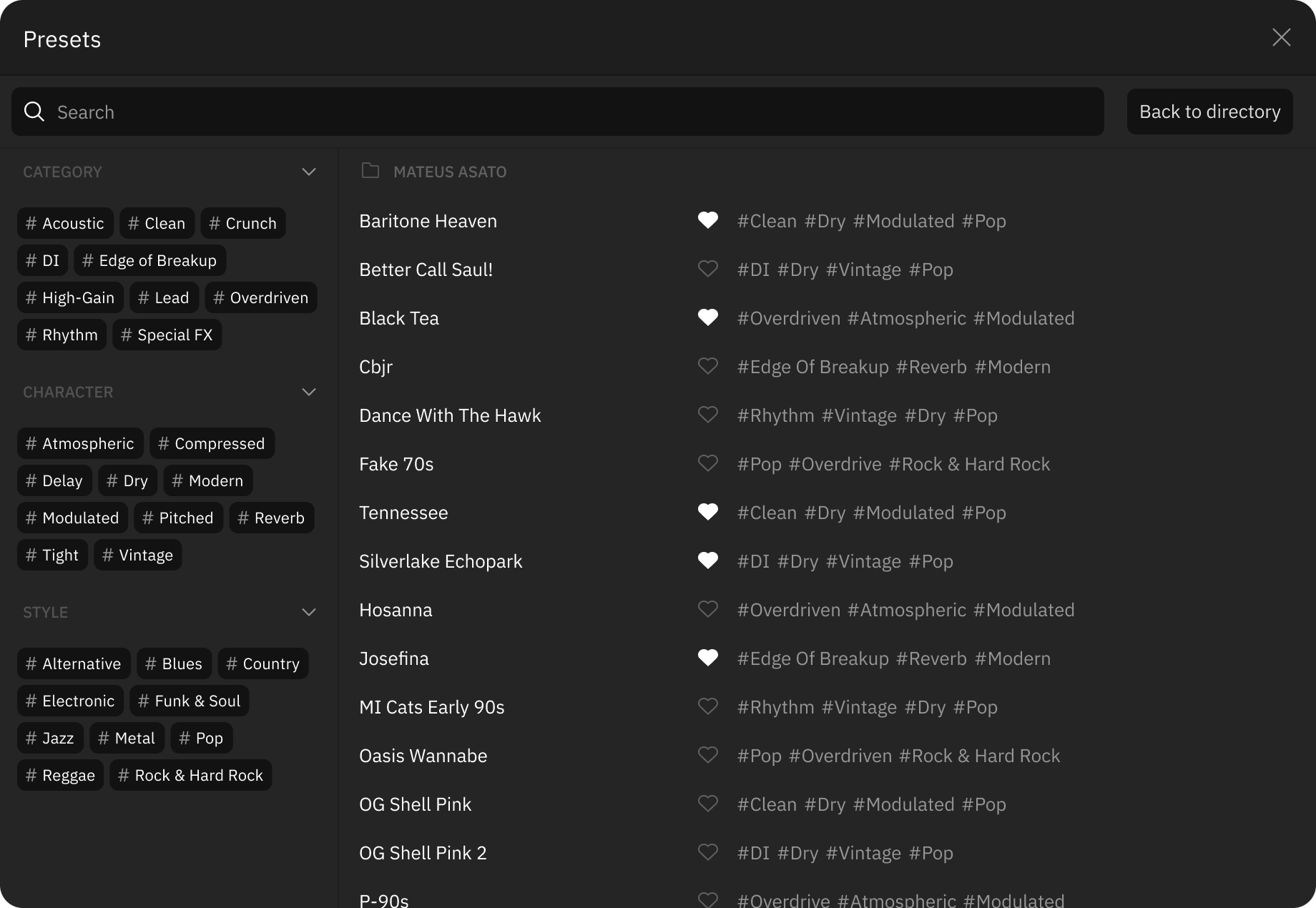
Our plugins include a preset browser that makes it easier to organize, search, and filter presets. It can be accessed by clicking the Folder icon next to the Preset dropdown. The browser has two main views.

Directory View

Directory view of Preset Browser

The Directory view is a list of presets in their specific folder. In addition to all specific folders, you can see All, Recent and Favorite presets. The list includes Tags to help describe what each preset sounds like.

Search view

Preset browser search window

The Search view is accessed by clicking the Search Bar. You can either type in queries, or use the Tags to narrow down your search. The Locate icon will take you back to the folder where that specific preset is, for editing purposes.

Tuner

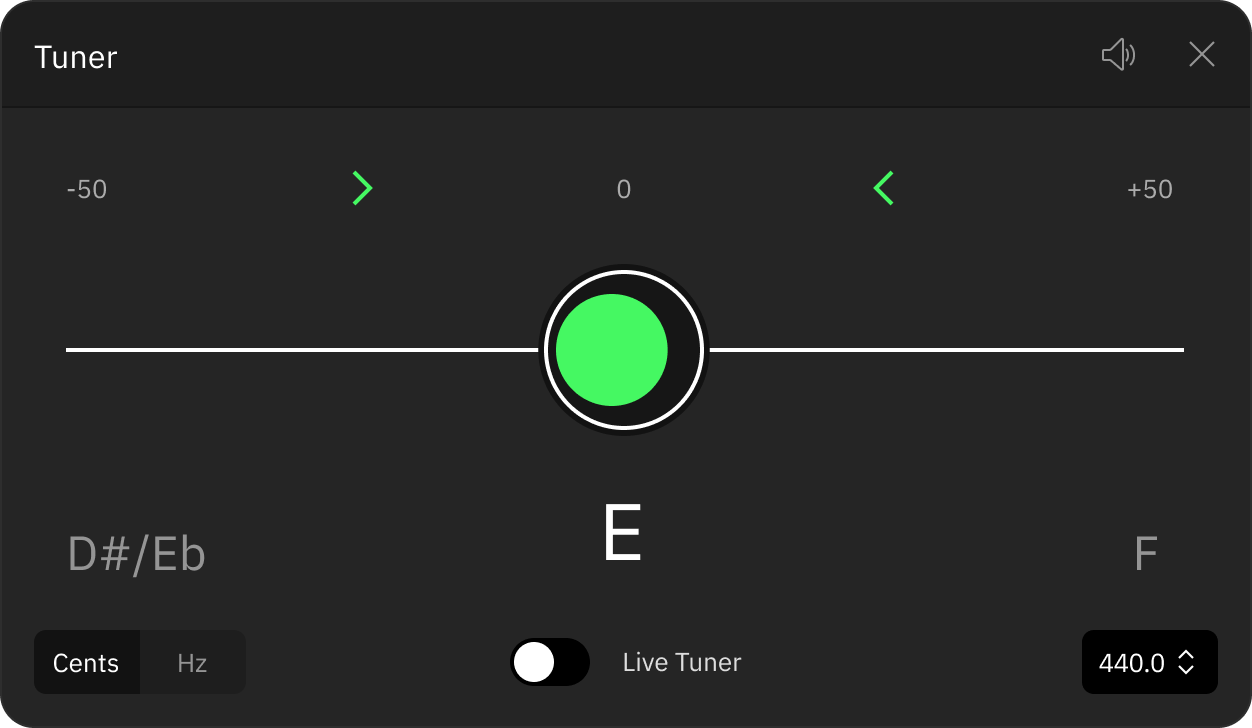
Both standalone and plugin versions feature a built-in chromatic tuner. It works by detecting the pitch of the note that is being played and then displaying it on the screen.

Tuner window
  • Tuning: Displays the note that is being played and its current pitch.

  • Mute: Mutes the DI signal monitoring. This setting is recalled upon opening new instances of the plugin.

  • Mode: Toggles the pitch values between Cents or Hz.

  • Live Tuner: Enables a compact tuner that is displayed in the footer. You can also use ⌘ or CTRL + Click on the Tuner button in the footer to toggle the Live Tuner on and off.

  • Frequency: Adjusts the reference pitch (420 - 460 Hz)

Metronome

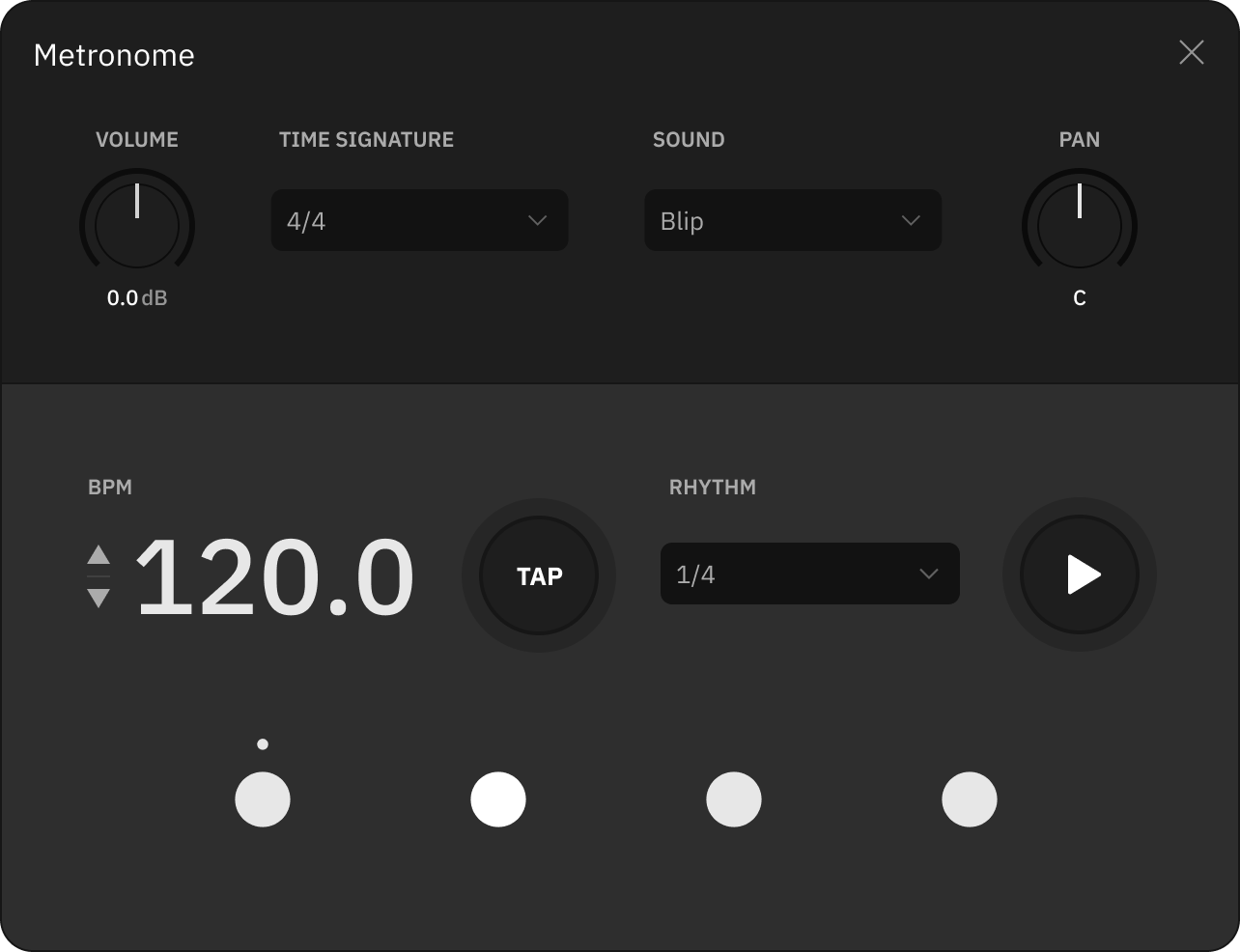
The standalone app features a built-in Metronome. It works by producing a steady pulse to help you to practice and play in time. Playback for the metronome can be quickly started or stopped by clicking the Play button in the bottom bar.

Metronome window

  • Volume: Adjusts the output level of the metronome's playback.

  • Time signature: Navigate time signatures. Includes compound and complex variations.

  • Sound: Set your preferred sound for the metronome beats.

  • BPM: Displays the current beat tempo. Click-and-drag it up and down, or use the arrows, to increase or decrease the BPM value (40 - 240 BPM).

  • Pan: Adjust the output panning of the metronome beats.

  • Tap: Set the tempo by clicking. The BPM value is set as the interval between the last two clicks.

  • Rhythm: Determines how many pulses can be heard per beat.

  • Beat LEDs: Click to customize the different accents, or whether a beat will be played or not.

MIDI

Neural DSP plugins can be controlled by external MIDI devices and DAW commands. This allows you to connect MIDI controllers such as footswitches and expression pedals to control parameters and UI components within the plugin. Any MIDI device capable of sending Control Change, Program Change or Note messages to your computer will be compatible with Neural DSP plugins.


MIDI Device setup

Follow these steps to set up a MIDI controller to use with our plugins:

  1. Connect your device to your computer. Depending on your device, this might be done via USB (straight into your computer using a USB Cable) or MIDI Out to MIDI In (into a MIDI interface using a MIDI cable).

  2. Although most MIDI controllers are plug-and-play devices, some require driver software to be installed before they can be used. Double-check the user manual for your specific controller to see if this is necessary.

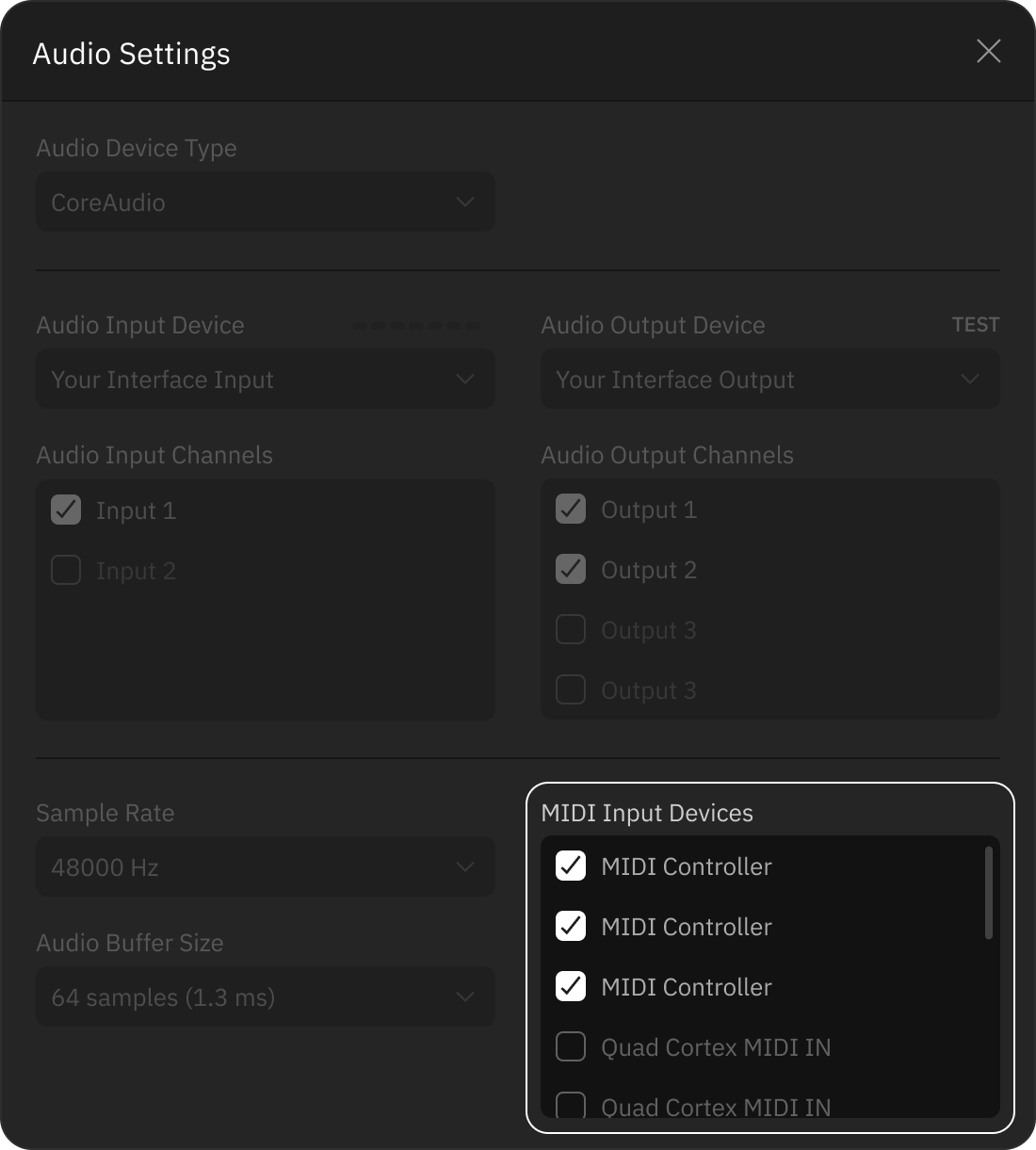
  3. Once your MIDI controller is connected to your computer, check that it is recognized by your plugin standalone app. Click Settings in the bottom bar and check if the controller appears in the MIDI Input Devices menu.

  4. To use MIDI controllers with a DAW, look for its MIDI settings menu and enable your MIDI controller as a MIDI Input device. (Optional)

Audio settings with MIDI Input Devices highlighted


MIDI Learn

Using the MIDI Learn function is the quickest and easiest way to map MIDI messages on your plugin. To do so:

  1. Right-click a parameter that you wish to control and click Enable MIDI Learn.

  2. Press the button or move the pedal/slider on the MIDI controller that you want to use to control that parameter. The plugin will then automatically assign the button or pedal to the chosen parameter, which will now be highlighted in the interface.

  3. All the assigned MIDI messages will be registered in the MIDI Mappings window in the bottom bar.


MIDI Mappings

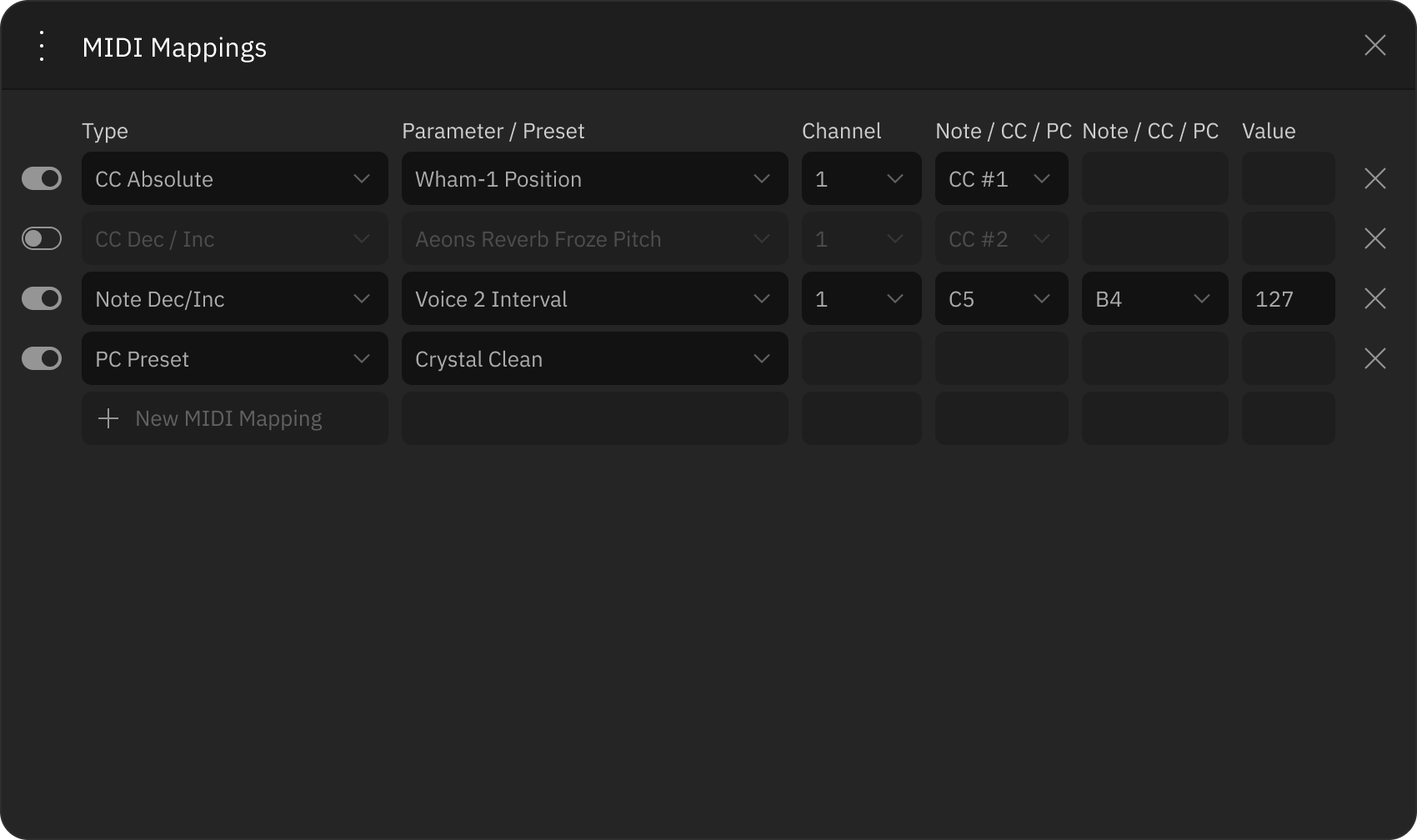
In the MIDI Mappings window, you can view and modify all the MIDI messages you have assigned to your plugin.

To add a new MIDI message, click on “New MIDI Mapping” located on the left side of the empty row. This will allow you to manually map a MIDI message to a parameter. You can also save and load MIDI Mapping Preset XML files.

midiMapping window

Making your Mac® a Bluetooth MIDI host

  1. Open the “Audio MIDI Setup” app.

  2. Click on Window > Show MIDI Studio.

  3. In the MIDI Studio window, click on “Open Bluetooth

  4. Configuration...”. Set your Bluetooth MIDI device peripheral in pairing mode.

  5. Select the peripheral in the list of devices, then click “Connect”.

Once your Bluetooth MIDI controller is connected to your computer, check that it is recognized by your plugin standalone app. Click on Settings in the Footer and check if the controller appears in the MIDI Input Devices menu.

04
Installation and Setup

New to plugins? This is your guide to the basics. Read on to learn what you need to start using your Neural DSP plugin.

Basic requirements

Getting set up is very simple, but there are a few things you will need before you begin:

  1. Any Windows® PC or Apple Mac® capable of multitrack audio processing. Make sure your computer meets the minimum required specifications:

    Mac

    • Intel Core i3 Processor (i3-4130 / i5-2500 or higher)

    • Apple Silicon (M1 or higher)
      8GB of RAM or more

    • macOS® 13 Ventura (or higher)


    Windows
    • Intel Core i3 Processor (i3-4130 / i5-2500 or higher)

    • AMD Quad-Core Processor (R5 2200G or higher)

    • 8GB of RAM or more

    • Windows® 10 (or higher)

  2. An audio interface to connect your instrument to your computer via USB, Thunderbolt or PCIe. Neural DSP hardware such as Quad Cortex can be used as USB interfaces.

  3. Studio monitors or headphones. Having the sound play back from the computer speakers is not recommended due to quality and latency issues.

  4. iLok License Manager: A free app that allows you to manage all your plugin licenses in one place and transfer them between different computers.

Supported DAWs

DAWs, short for “Digital Audio Workstations”, are music production software programs that have a comprehensive set of tools for recording, editing, and mixing digital audio.

All Neural DSP plugins include a standalone app version, meaning that you don’t need a DAW to use them. However, if you are planning on recording your playing, you will need to install your plugins to your DAW.

A complete installation setup will automatically install all the different plugin formats:

APP: Standalone app.
AU
: Plugin format developed by Apple for use on macOS®.
VST2: Multi-platform format compatible across multiple DAWs on both macOS® and Windows® devices.
VST3: An improved version of the VST2 format that only uses resources during monitoring/playback. It’s also available on both macOS® and Windows® devices.
AAX: Pro Tools native format. It can only be used on Avid Pro Tools.

Most DAWs automatically scan for new plugins upon launch. If you cannot find the plugins in your DAW’s plugin manager, manually rescan the plugin folder to locate the missing files. Our plugins are compatible with a wide range of DAWs. Below is a list of DAWs we have tested:

Ableton Live 12 (VST, Audio Unit)
Pro Tools 2024 (AAX)
Logic Pro 11 (Audio Unit)
Cubase 13 (VST)
Reaper 7 (VST, Audio Unit)
Fender Studio Pro 8 (VST, Audio Unit)
Reason 12 (VST)
FL Studio 21 (VST)
Cakewalk by Bandlab (VST)

Note that even if your DAW is not listed above, it might still work. If you encounter any compatibility issues, don’t hesitate to contact support@neuraldsp.com for further assistance.

Once your plugins are available in your DAW, create a new project, insert a new audio track, arm it for recording, and load the plugin onto the track.

Default file locations

Neural DSP plugins will be installed in default locations for each plugin format unless a different custom location is selected in the process.

MacOS®

By default, the plugin files are installed in the following directories: 

AU: Macintosh HD/Library/Audio/Plug-ins/Components
VST2: Macintosh HD/Library/Audio/Plug-ins/VST
VST3: Macintosh HD/Library/Audio/Plug-ins/VST3
AAX: Macintosh HD/Library/Application Support/Avid/Audio/Plug-ins
Standalone App: Macintosh HD/Applications/Neural DSP
Preset Files: Macintosh HD/Library/Audio/Presets/Neural DSP
Settings Files: <User Folder>/Library/Application Support/Neural DSP
Manual: Macintosh HD/Library/Application Support/Neural DSP


Windows®

By default, the plugin files are installed in the following directories: 

VST2: C:\Program Files\VSTPlugins
VST3: C:\Program Files\Common Files\VST3
AAX: C:\Program Files\Common Files\Avid\Audio\Plug-Ins
Standalone App: C:\Program Files\Neural DSP
Preset Files: C:\ProgramData\Neural DSP
Settings Files: C:\Users\<Your profile>\AppData\Roaming\Neural DSP
Manual: C:\Program Files\Neural DSP

License activation

In order to use Neural DSP plugins, you will need an iLok account and the iLok license Manager application installed on your computer. iLok is completely free to use.

iLok setup

  1. Go to iLok’s account registration page and fill out the required fields in the registration form.

  2. A confirmation email will be sent to the email address provided during registration. Open the confirmation email in your inbox and click on the verification link.

  3. Download iLok License Manager and install it on your computer. After that, open the app and login using your iLok account email address and password.

  4. Link your iLok account to your Neural DSP account by entering your iLok username in your account settings. This will ensure that purchased licenses are deposited automatically in your iLok account after checkout.


Once a plugin is installed and launched for the first time, an iLok dialog will appear.

  • If you want to start the 14-day trial: Click the Try button. You will be prompted to enter, or confirm your account information and the plugin trial will begin.

  • If you've purchased the plugin: Click the Activate button. Login to your iLok account when prompted and activate the license on your machine. Your Perpetual License then will be activated.


You do not need an iLok USB dongle to use Neural DSP plugins as they can be activated directly onto computers. Note that a single license can be activated on 3 different computers at the same time as long as the same iLok account is used on all of them.

Licenses can be deactivated from computers that are not in use and transferred to other devices. This process can be repeated indefinitely.

Setting up your plugin

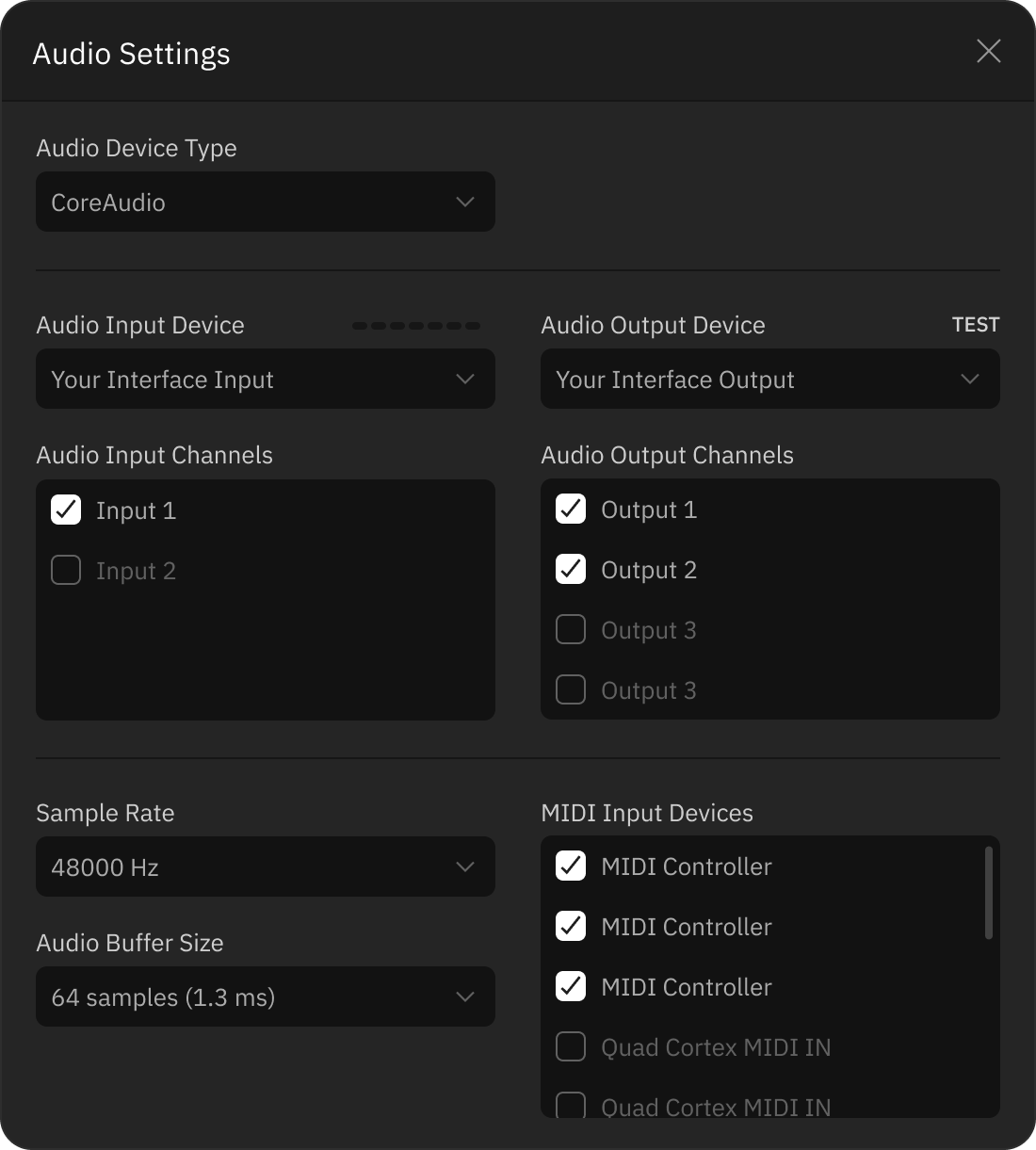
Once you have installed and activated your plugin, you can set it up and start using it. To get started, launch the plugin’s standalone app and click Settings in the footer.

Standalone plugins' Settings screen

Use the following settings to optimize your plugin’s performance and achieve the best possible tone.

  • Audio device type: All available audio drivers on your computer are listed here. For most audio recording applications on Windows®, ASIO is the preferred driver format. CoreAudio is the recommended option on macOS®.

  • Audio device: Choose the audio interface that your instrument is connected to.

  • Audio input channels: Select the interface input(s) your instrument is connected to.

  • Audio output channels: Select the interface output(s) that you use for monitoring.

  • Sample rate: We recommend 48000 Hz unless a different rate is required for your session.

  • Audio buffer settings: Set it to 128 samples or lower. Increase the buffer size to 256 samples or higher if you experience performance issues.

What is latency?

When monitoring plugins in real-time, you may experience a slight delay between playing a note on your instrument and hearing the sound through your headphones or studio monitors. This delay is called latency. Decreasing the buffer size reduces the latency, but demands more from your computer’s processing power.

How do I change these settings in a DAW audio session?

To set up audio settings for plugins within a DAW, open the audio settings section of your DAW’s preference menu. From there, you can select your audio interface, set the I/O channels, adjust the sample rate and buffer size.

Uninstalling Neural DSP software

To uninstall Neural DSP software on macOS®, delete the files manually in their respective folders.

On Windows®, Neural DSP software can be uninstalled either from the Control Panel or by selecting the “Remove” option from the setup installer.

Get in touch

Neural DSP Technologies is happy to provide professional technical support via email to all registered users, absolutely free of charge.

Before contacting us, we recommend searching our support and knowledge base sections below to see if the answer to your question has already been published.

Support

Knowledge Base

If you cannot find a solution for your problem on the pages above, please contact support@neuraldsp.com to help you further.


Corporate contact

Neural DSP Technologies OY
Merimiehenkatu 36 D
00150, Helsinki, Finland

05
Acknowledgements

Special thanks to...

Aaron Geldert / Adam Diakowski / Adnan Ayub / Aleksi Peussa / Avihai Eini / Brian Arne / Christopher Walker / Craig Rollo / Daniel Blanco Bernales / Domenico Pellegrino / Felix Eichas / Francisco Cresp / François Barrillon / Giovanni Azzalini / Greg Ramirez / Henri Penttinen / Jaakko Mäkinen / Jacopo Lovatello / João Rossi Filho / Joonas Tuovinen / Juan Herrera / Jussi Kaloinen / Jussi Saarelainen / Rafael Castillo / Tantep Sinjanakhom / Tarek Al Sibai / Yevgen Chebotarenko

Beta testing

Brock Jon / Erik Arko / Mykyta Perfiliev / Peter Berg / Phil Pluskota