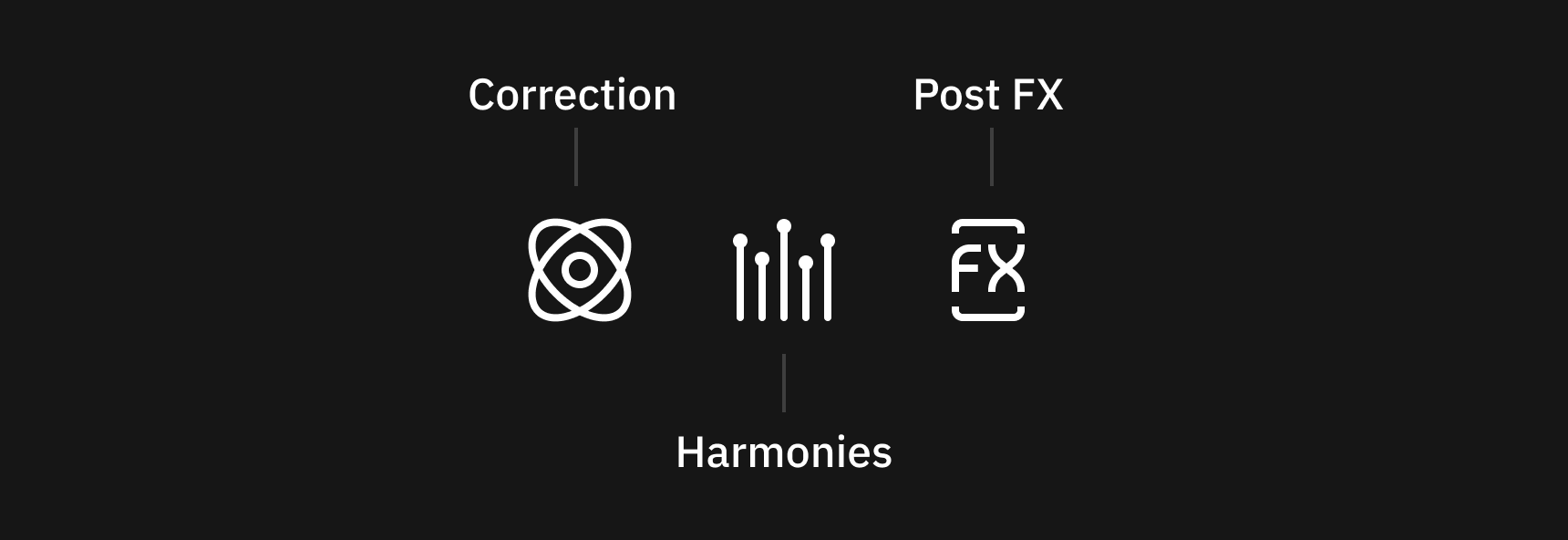
Correction Section
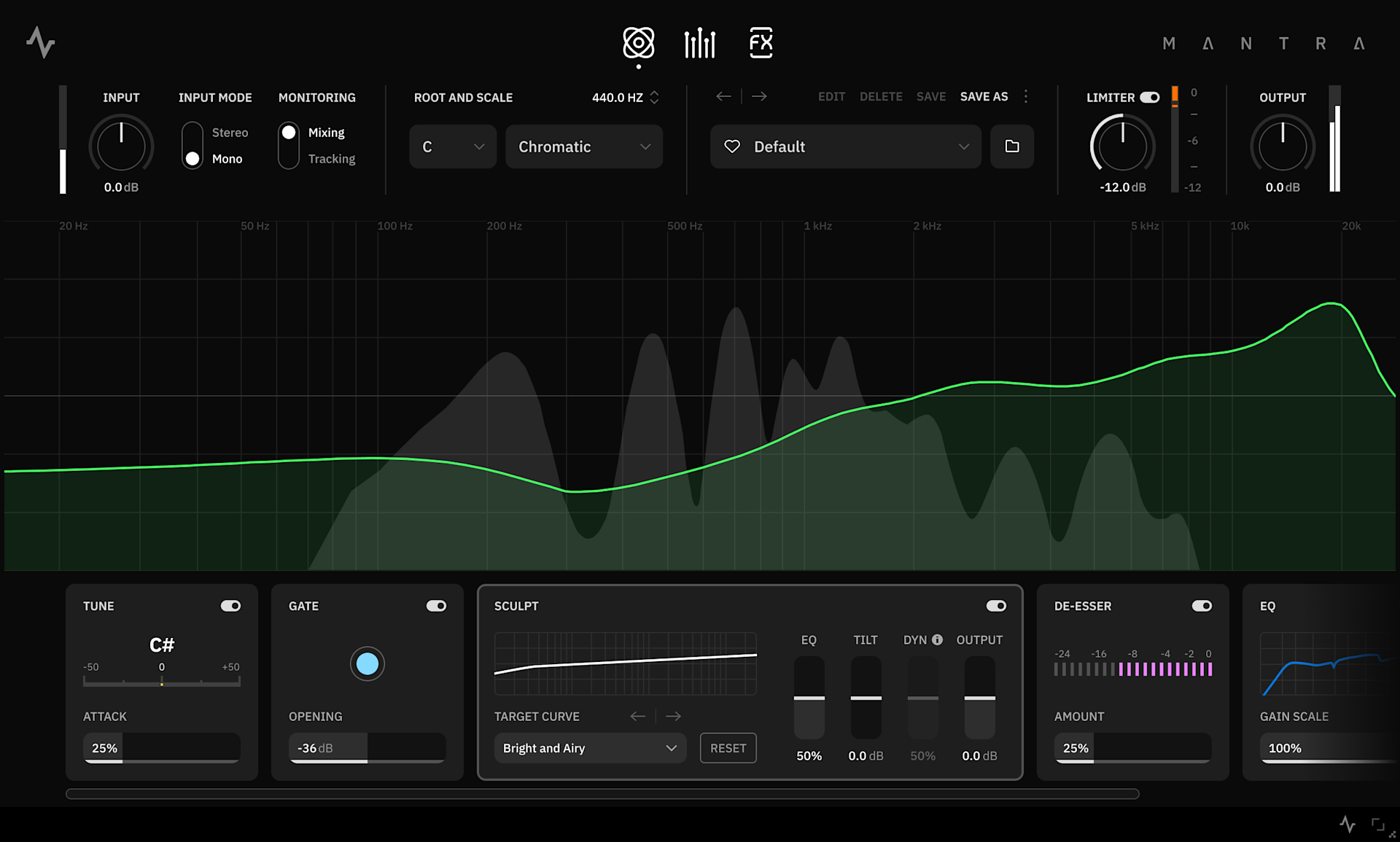
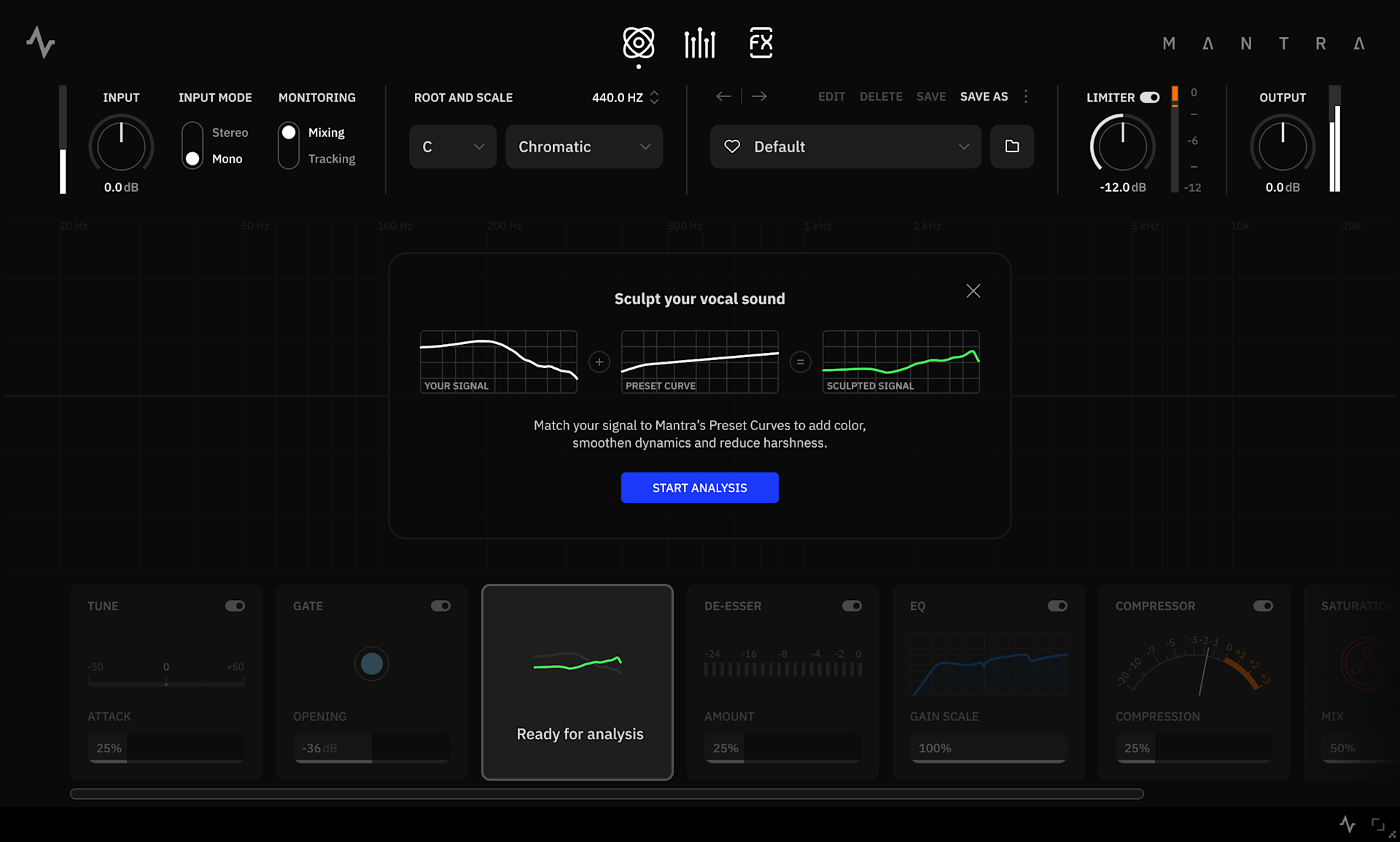
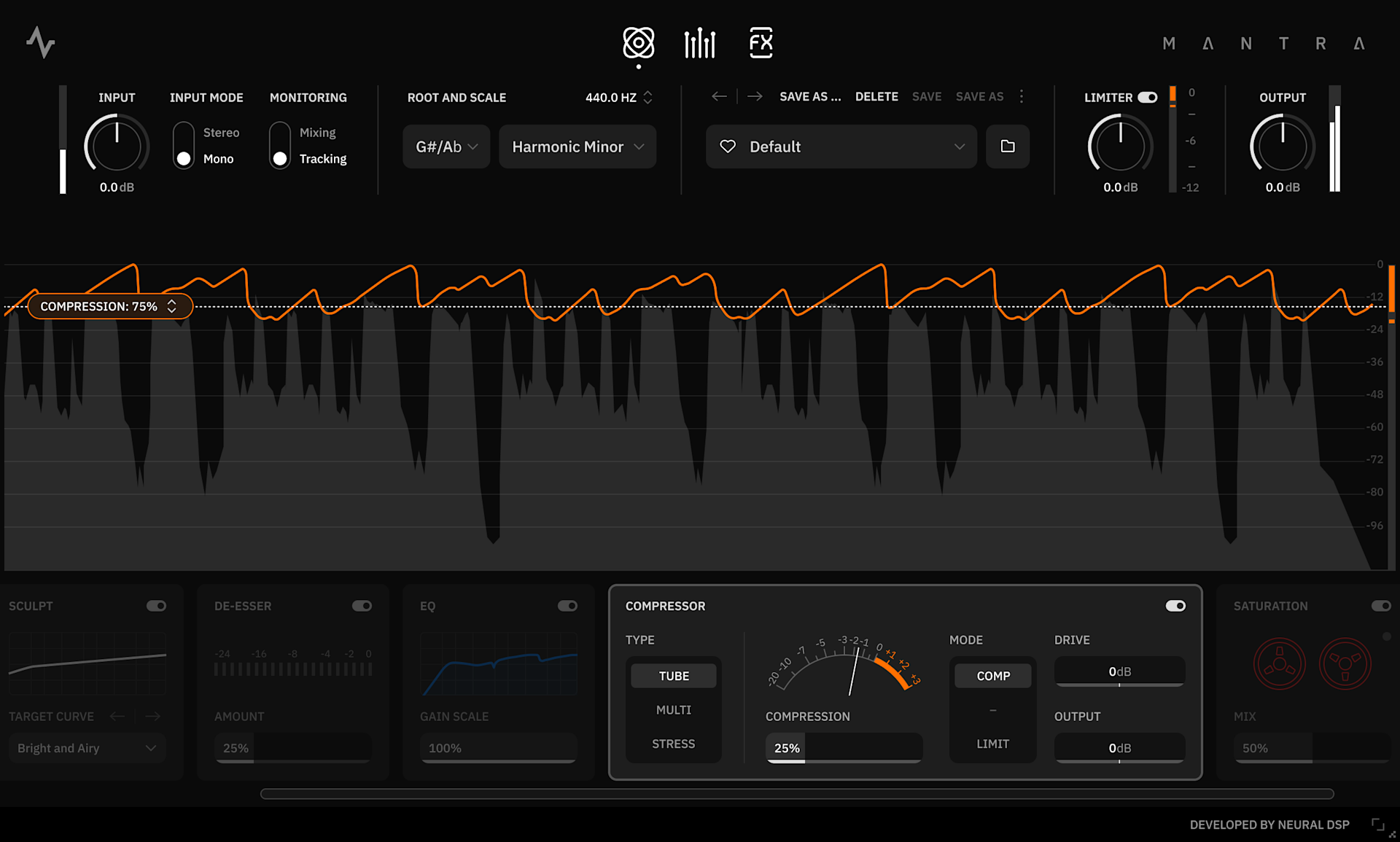
This section consists of seven Processing Modules in series which can be used either separately or combined. The Visualizer consists of a central display area that provides real-time feedback of your audio signal, as well as information related to the Module you have currently selected. The Processing Modules are arranged along the bottom section of the user interface for easy access and control.
Clicking on any adjustable parameter activates Focus, represented by a frame surrounding the control, enabling keyboard-based interaction for precise, accessibility-oriented control.

While a parameter is in Focus the following keyboard functions are available
Value Entry: Type a numeric value and press Enter to apply it.
Arrow Keys: Use the ↑ / ↓ or ← / → keys to increase or decrease values on vertical and horizontal sliders.
Tab: Moves focus to the next parameter.
Shift + Tab: Moves focus to the previous parameter.
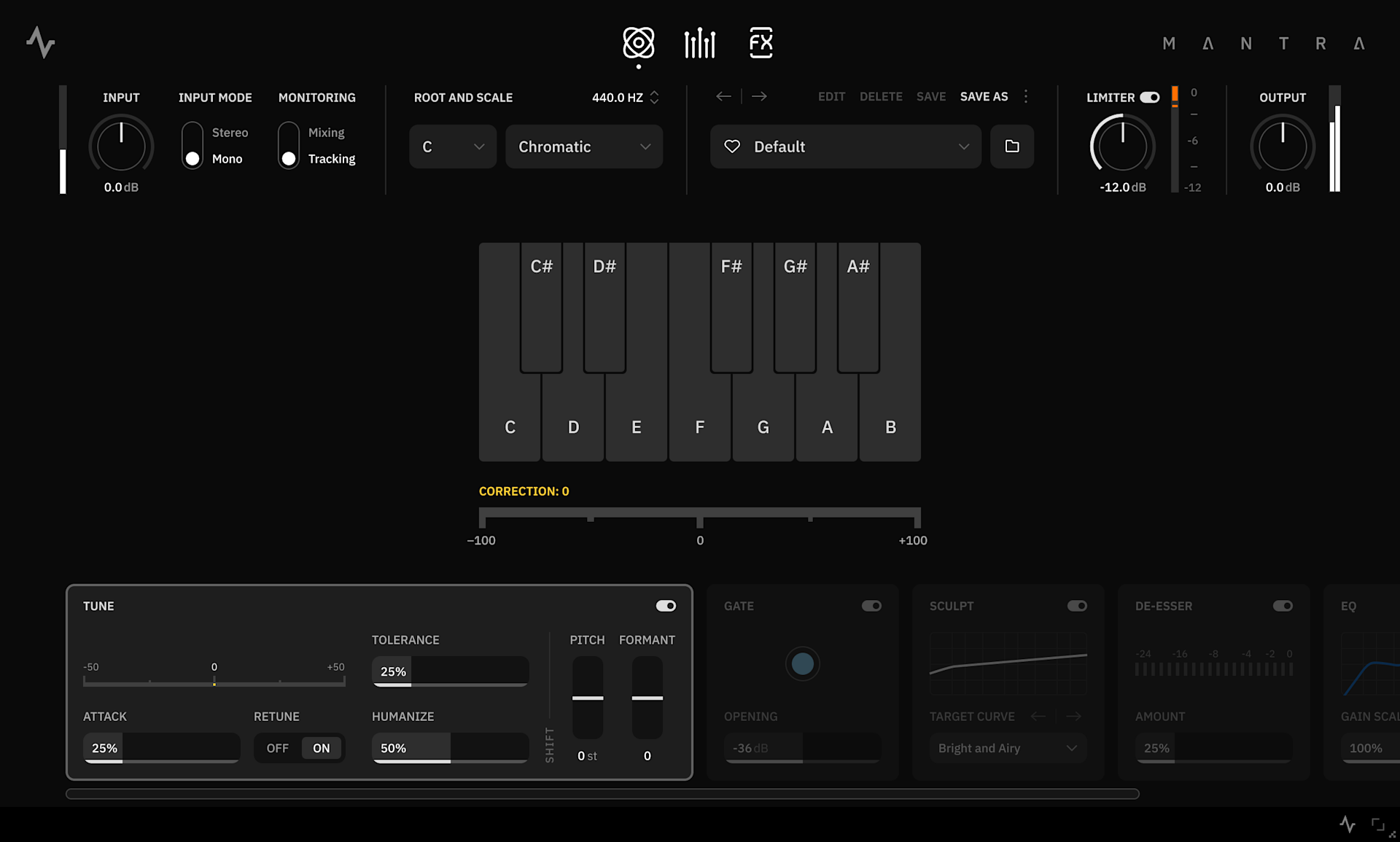
Tune - Real-time pitch correction module
Correction Meter: Shows the amount of pitch correction applied in cents.
Attack Slider: Determines how fast the pitch correction is applied to the signal. Higher values apply more pitch correction.
Retune Switch: Activate/deactivate the pitch correction. Disabling Retune still allows you to use the Pitch and Formant Shift functions.
Tolerance Slider: Adjusts the sensitivity of the pitch analysis. Lower values increase the pitch correction sensitivity.
Humanize Slider: Dynamically reduces the correction applied based on the note duration to maintain a more natural modulation. Increase to get a more human feeling in the pitch correction.
Pitch Shift Slider: Pitch the signal up or down by semitone increments (Chromatic), constant intervals (Scale), or steps (Custom scales).
Formant Shift Slider: Adjusts harmonic frequencies applied to the signal without affecting the pitch.
Note
The Tune module is disabled when the plugin’s Input Mode is set to Stereo.
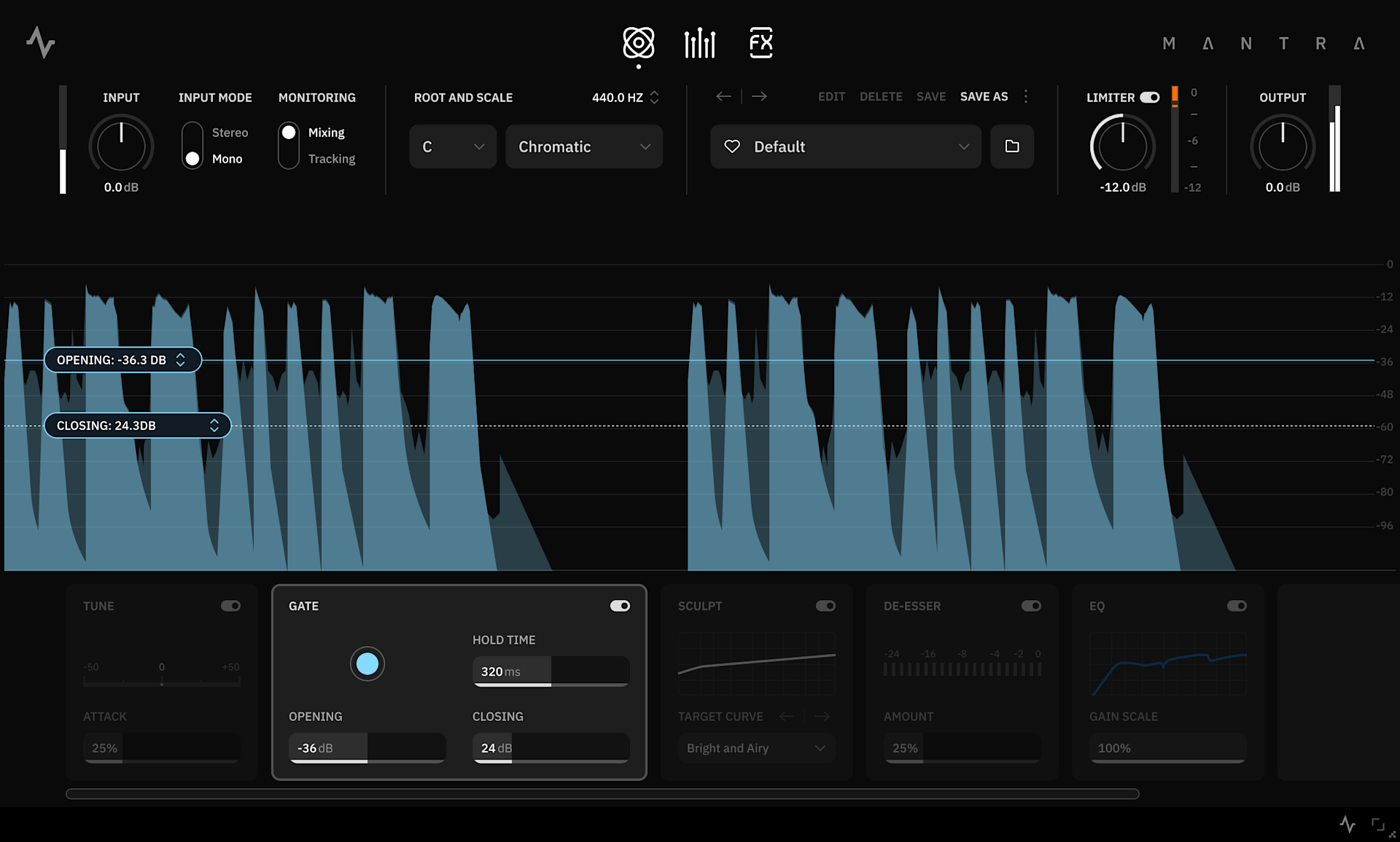
Gate - Noise gate module
Gate Meter: The indicator turns light blue when the gate is closed and grey when open.
Opening Slider: Sets the primary threshold level above which the gate opens, allowing the signal to pass through. Higher values increase sensitivity.
Closing Slider: Sets the secondary threshold level at which the gate will close.
Hold Time Slider: Determines how long the gate remains open after the signal reaches the Opening threshold. Higher values result in a longer open duration.
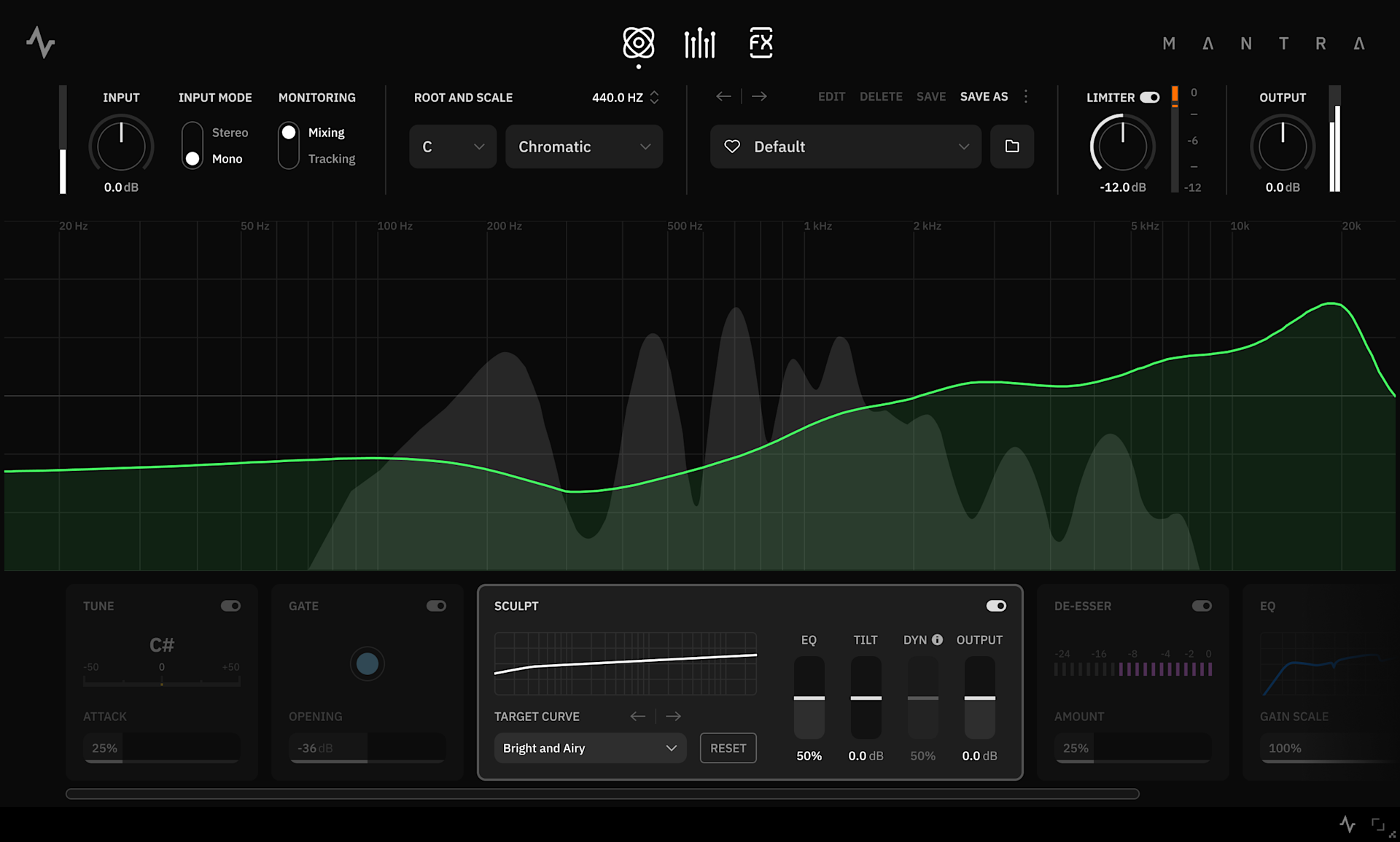
Sculpt - Automatic EQ and dynamic processing module
Sculpt is your fast-track to clarity and balance. It analyzes the frequency content of the input audio and applies a customized EQ curve to match your chosen target response. Harsh frequencies are smoothly tamed, and a spectral compressor helps control dynamics and reduce sibilance.
Click Start analysis and begin playing a portion of your vocal signal for a few seconds, so that Sculpt can analyze its frequency content.
Note
Sculpt analysis data is saved per plugin instance and is not linked to Presets. Sculpt parameter adjustments made after the analysis, however, can be saved and recalled by Presets. To reuse the same analysis on multiple tracks, duplicate the plugin instance from one track to another.
Target Dropdown: Displays the selected target curve. Click to open a dropdown list of different target curves to find the best fit for your vocals.
Reset Switch: Undoes the analysis. Use this when you want to re-analyze the vocals and update the EQ curve.
EQ Slider: Adjusts the overall EQ amount applied to the signal. This acts as a global control to scale how strongly Sculpt affects your vocal timbre.
Tilt Slider: Globally tilts the Sculpt EQ curve to brighten or darken the tone.
Dyn Slider: Controls the amount of spectral compression applied to match the target curve (Only available in Mixing mode).
Output slider: Adjusts the output level of the Sculpt module.
De-Esser - Sibilance suppressor module
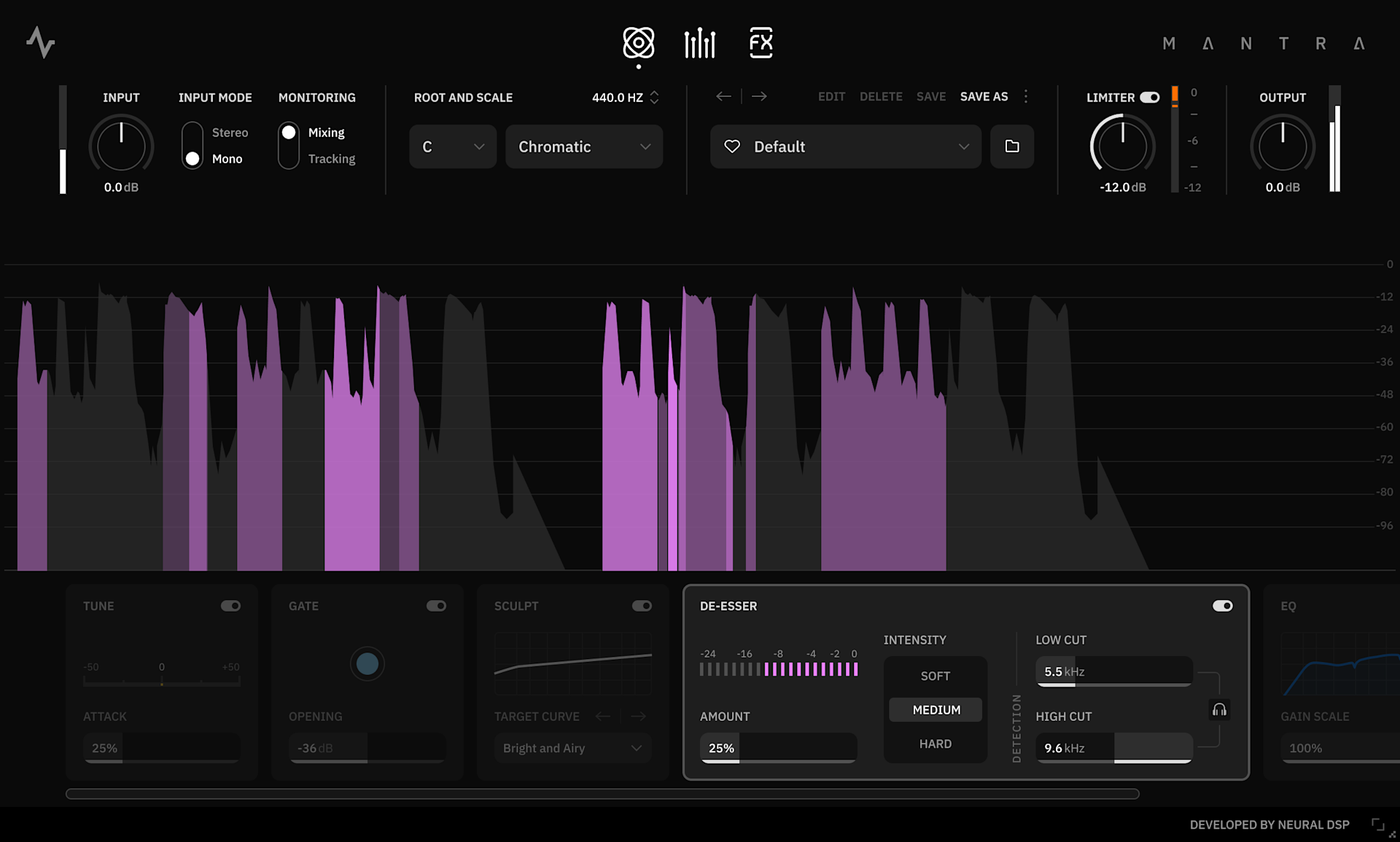
Designed to reduce harsh sibilant sounds (such as “s” and “t”) commonly found in the upper frequency range of vocals, the De-Esser works by isolating a targeted frequency band using high-pass and low-pass filters. This isolated band serves as a trigger to attenuate excessive sibilance when detected.
De-Esser Meter: The meter shows the amount of sibilance attenuation applied to the signal, measured in decibels (dB).
Amount Slider: Controls how much de-essing is applied to the signal. Adjust to balance the effective sibilance reduction without overly dulling the vocals.
Intensity Slider: Sets the aggressiveness of the de-essing effect. Choose between Soft, Medium, or Hard settings to best suit your vocal track.
Low Cut Slider: Sets the lowest frequency at which the module begins detecting sibilance.
High Cut Slider: Sets the highest frequency at which the module stops detecting sibilance.
Filter Link Switch: Click to maintain a fixed range between the Low Cut and High Cut frequencies when adjusting either one.
Monitoring Switch: Isolates and plays back only the detected sibilances.
EQ - Parametric Equalizer module
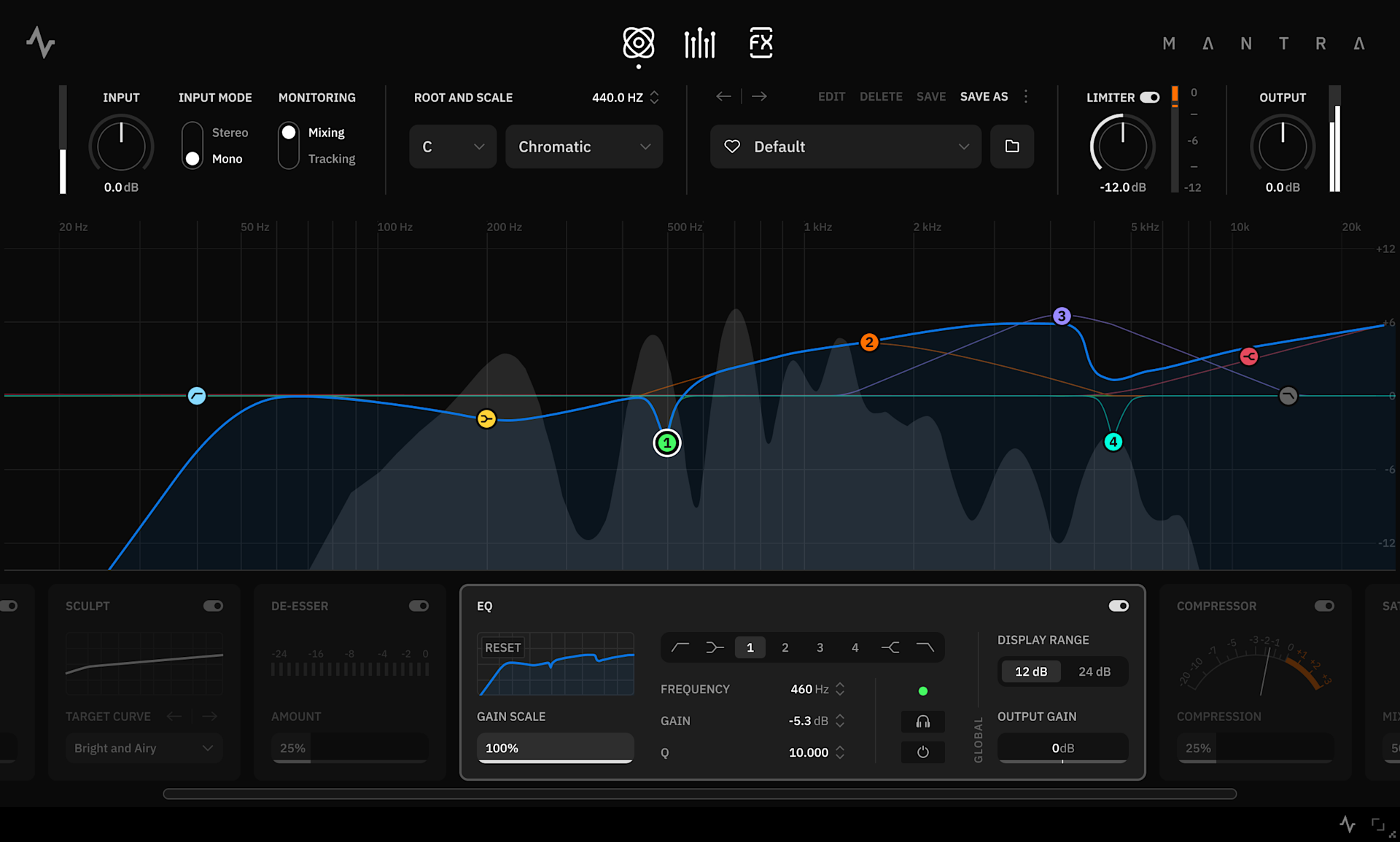
Low Shelf EQ Band: Boosts or attenuates frequencies below the selected frequency with a gradual slope.
EQ Bands 1-4: Set of Bell/Peaking filters used to boost or attenuate specific range of frequencies.
High Shelf EQ Band: Boosts or attenuates frequencies above the selected frequency with a gradual slope.
High Cut EQ Band: Removes high-frequency content from the signal, allowing frequencies below the cutoff to pass through.
Frequency Slider: Adjusts the frequency of the selected band, ranging from 20Hz to 20kHz.
Gain Slider: Adjusts the gain level of the selected EQ band. Increase to boost the frequency level, decrease to reduce it.
Q Slider: Adjusts the bandwidth (Resonance) of the selected EQ band. Available for EQ Bands 1–4 and Shelves. Higher Q values narrow the frequency range
Audition Switch: Soloes the selected EQ band, muting all others. Useful for isolating and fine-tuning specific frequencies.
EQ Band Bypass Switch: Activates/deactivates the selected EQ band. Can also be controlled by Right clicking a band in the Visualizer.
Display Range Switch: Sets the maximum visible gain scale for EQ Curve. Can be set to either 12dB (for fine adjustments) or 24dB.
Output Gain Slider: Adjusts the output level of the EQ module.
Notes
Selecting the EQ will display the EQ Curve on the Visualizer. All bands can be controlled from here by dragging and pressing different modifiers:
Frequency: Option/Alt
Gain: ⌘/Ctrl
Q: Scroll wheel/gesture
Audition: Shift
Reset band: Double click
Bypass: Right click
Compressor - Multimode compressor module
The Compressor module provides versatile dynamic range control, inspired by both analog and digital designs widely used in vocal production. It features three distinct modes, allowing you to shape compression to match any musical style.
Type: Toggle between different compressor types: Tube (Based on the Teletronix® LA2A®), Stress (Based on the Empirical Lab® Distressor®), Multi (Multi-Band Compression).
Compression Slider: Adjusts the amount of compression applied to the signal.
Tube
Smooth, classic compression with added harmonic distortion and slower time constants. Perfect for subtle gain control during vocal tracking.
Stress
FET-style compression with added harmonic distortion at higher settings, ideal for a gritty, aggressive sound.
Ratio: Adjusts the compression intensity by selecting between three different reduction ratios (4:1, 6:1, or 10:1).
Time: Scales the duration of the attack and release for Faster or Slower response.
Multi
Modern multiband compressor that offers both upward and downward compression, ideal for precise and aggressive dynamic control and shaping.
Preset: Sets different compression values for the Low, Mid and High frequency bands (OTT, Balanced, or Mid Focused).
Time: Scales the duration of the attack and release for Faster or Slower response.
Note
Each compressor Module has its own dedicated Compression and Output sliders.
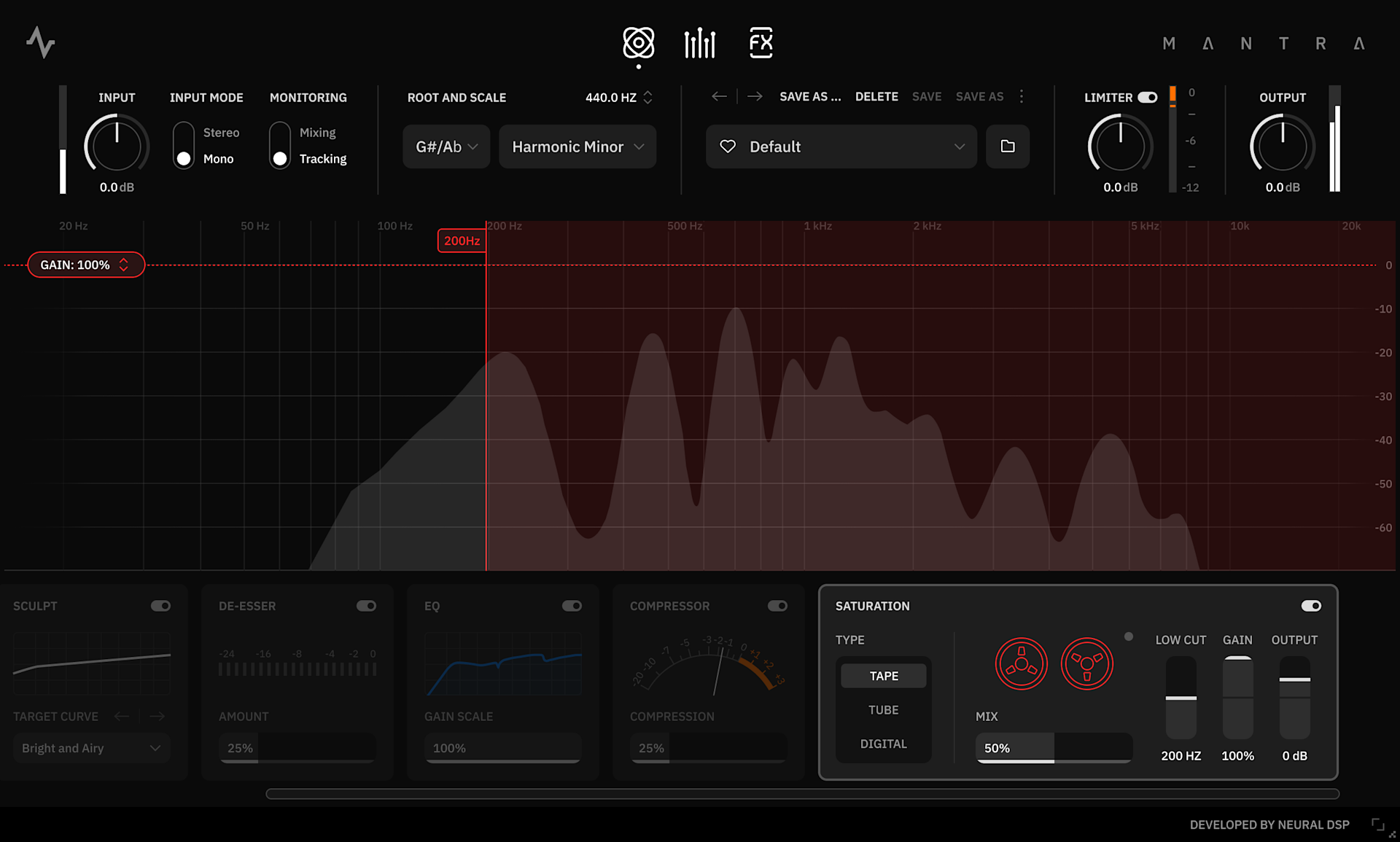
Saturation - Multimode distortion module
The Saturation module offers a wide range of tonal options, ideal for adding warmth, character, or grit to your vocals. With three distinct modes, you can adjust the saturation to suit various musical styles and production needs.
Type: Toggle between saturation types:
Tape: Classic saturation of an overdriven tape machine, adding vintage charm to the signal.
Tube: Hardware tube distortion unit (Inspired by the Thermionic® Culture Vulture® in Triode mode), delivering smooth, harmonic warmth.
Digital: More aggressive, modern tone with sample rate reduction and subtle bit crushing.
Low Cut Slider: Prevents low-frequency content from being affected by the saturation.
Gain Slider: Adjusts the amount of saturation applied to the input signal. Higher values increase saturation intensity. The saturation gain is automatically compensated to maintain a consistent output level, regardless of the setting.
Output Slider: Adjusts the output level of the Saturation prior to the Mix control.