NeuralDSP logoNeuralDSP logo
Nano Cortex® User Manual 2.2.0

01
Welcome to Nano Cortex

Neural DSP® Nano Cortex® User Manual [NanOS 2.2.0]

NC ModelBack 001

Global Features

Neural Capture, one of the hallmark features of Neural DSP’s hardware, is integrated into Nano Cortex. This proprietary technology can learn and replicate the sonic characteristics of any physical amplifier, cabinet, or overdrive pedal with unprecedented accuracy.

Build Presets by adding a Neural Capture, an IR Loader, and effects to your signal chain. Deeper Preset customization and additional features are available via the Cortex Cloud app.

  • Neural Capture

  • 64 Preset slots

  • 25 Capture slots organized in 5 banks

  • 5 IR slots

  • 5 Effect slots that can be used separately or combined

  • MIDI support and Bluetooth connectivity

  • Access to thousands of Neural Captures on the Cortex Cloud app

Cortex Cloud

Discover Users and Neural Captures using the Cortex Cloud app.

Contact Information

Neural DSP Technologies is happy to provide professional technical support via email to all registered users, absolutely free of charge. Before contacting us, we recommend searching our knowledge base to see if the answer to your question has already been published.

If you cannot find a solution to your problem, please contact support@neuraldsp.com so we can help you further.

02
Overview

Nano Cortex weighs 620 g / 1.36 lbs and its dimensions are 14.4 x 10.3 x 6.2 cm / 5.6 x 4.0 x 2.4".

Nano Cortex Dimensions

Top View

NC TOP 3b

Rear View

NC BACK 4a

Side View

NC SIDE 3b

03
Quick Start Guide

NC QSG 004

Turning on your Nano Cortex

Connect your Nano Cortex to the power source.

Booting Sequence 01

After a few seconds, the BANK, CAPTURE, FX, and IR LEDs will light up indicating that Nano Cortex is powering on.

Booting Up New

Once the booting sequence completes, Nano Cortex will enter Performance Mode.


POWER SOURCES

Nano Cortex can be powered by two different sources:

  • EXTERNAL POWER SUPPLY: Nano Cortex requires a center-negative power supply that provides 9-12V DC and at least 600mA, using a standard 2.1/5.5mm DC connector. The Quad Cortex Power Supply is also compatible.

  • USB-C: Nano Cortex can also be powered via USB-C (5V-1.5A). Connect the unit to your computer or another USB-C compliant power source with the included USB-C cable.

USB-C Compliant Power Sources

To ensure optimal performance and safety, please use a USB-C power source that complies with the following specifications: 5V - 1.5A.

While connecting Nano Cortex to USB-A ports will allow for data transmission, these ports will not provide sufficient power to fully operate the device. Using USB-A ports or non-compliant USB hubs may result in improper functionality. Always verify that the USB-C source meets these requirements to maintain the longevity and reliability of your device.

Turning off your Nano Cortex

NC OFF2

Disconnect the Nano Cortex from the power source to power off the device.

Connecting your Gear

GEAR WIREFRAME 1 V4

Connect your instrument to INPUT.

Connect your studio monitors, PA, or FRFR cabinet to OUTPUT 1L and 2R. Additionally, you can connect your Headphones to HP OUTPUT.


GEAR WIREFRAME 2 V3

If your Nano Cortex is part of a bigger pedalboard setup, use INPUT and OUTPUTS 1L/2R to place it wherever you need it in the audio chain.

Global Controls

CAPTURE GLOBAL CONTROLs B2

Turn GAIN, BASS, MID, and TREBLE knobs clockwise and counterclockwise to control the Capture parameters.

Turn LEVEL to control the master output volume (OUTPUT 1L and 2R).

Use the HP OUT knob on the back to control the headphones output volume.


Bank Cycle V3

Press BANK to cycle through Capture banks.


CAPTURE SLOTS V8

Turn Footswitch Iclockwise or counterclockwise to navigate Capture slots.

All the LEDs will turn on when using a Neural Capture from the library that is not currently assigned to any slot.

Navigate to the last position, where the LEDs are not lit, to bypass the Neural Capture.


Preset AB V3

Press Footswitch I to toggle between Presets IAand IB. Different Presets can be assigned on the Cortex Cloud app.


Preset IIBA

Press Footswitch II to toggle between Presets IIA and IIB. Different Presets can be assigned on the Cortex Cloud app.


FX Cycle V4

Press FX to cycle through effect slots. Press-and-hold FX to bypass/enable the currently selected effect.


FX AMOUNT V4

Turn the AMOUNT knob clockwise or counterclockwise to change how much of the selected effect is applied.


IR SLOTS V8

Turn Footswitch II clockwise or counterclockwise to navigate IR slots.

All the LEDs will turn on when using an IR from the library that is not currently assigned to any slot.

Navigate to the last position, where the LEDs are not lit, to bypass the IR Loader.


Tunner Access 004


Press-and-hold Footswitch II for 2 seconds to access the Tuner. Press Footswitch II to exit the Tuner.


Action Buttons V6b

EXIT, CAPTURE, and SAVE buttons are reserved for the Neural Capture process, Preset saving, and Bluetooth pairing.

Neural Capture Quick Guide

Frame 1179

Neural Capture is a powerful tool that can learn and replicate the sonic characteristics of any amplifier, cabinet, or overdrive pedal with unprecedented accuracy and realism.

To create a Neural Capture, connect Nano Cortex to an overdrive pedal, a mic’d up cabinet, or an amplifier via a reactive load box.


Quick Connection Diagram

Capture Mode V6

Press CAPTURE to access Capture Mode. In this mode, the CAPTURE LED ring will stay on.


01 REFERENCE INSTRUMENT

Connect your instrument to INPUT.


02 MONITORING DEVICES

Connect your headphones to HP OUTPUT or your Monitor Speaker to OUTPUT 1L.


03 TARGET DEVICE

Connect the Nano Cortex's OUTPUT 2R (CAPTURE OUT) to the target device's input.


04 RETURN TO NANO CORTEX

Connect the target device's output to the Nano Cortex's CAPTURE INPUT.


05 CAPTURE INPUT GAIN
CAPTURE GAIN V6

Set the CAPTURE INPUT level by adjusting the GAIN knob.


06 CAPTURE
CAPTURE START V6

Press-and-hold CAPTURE for 3 seconds to begin the Capture process.

CAPTURE Progress V6

The CAPTURE LED ring will light up progressively as soon as the process begins.


07 TEST & SAVE
Capture AB Controls 003

Press Footswitch I to toggle between the Neural Capture and the Target Device.

Preset Saving V3

Press SAVE to store the recently created Capture. Choose a BANK, a Capture Slot, and press-and-hold SAVE for 3 seconds to store your Neural Capture.

Cortex Cloud App Pairing

BT 0035

Deeper Preset customization and additional features are available via the Cortex Cloud app.


BLUETOOTH PAIRING
BT Pairing 5

Open the Cortex Cloud app on your smartphone, access the Devices menu, and tap Add New. Your smartphone will start searching for nearby Nano Cortex units.

BT pairing short NEW

Press-and-hold EXIT and CAPTURE for 1 second to put your Nano Cortex into Pairing Mode.

The GAIN LED ring will illuminate clockwise and the Footswitch I's LED will blink slowly, indicating that Nano Cortex is in pairing mode.

BT Pairing Succesful 02

Once paired, the app will show the current Nano Cortex configuration.


EXIT v6

During Pairing Mode, press EXIT to return to Performance Mode.

Parameter Lock

It's possible to temporarily disable the rotary functionality of knobs and footswitches to avoid unwanted parameter switching when performing.

EXIT 3sec v6

Press-and-hold EXIT for 3 seconds to toggle the Parameter Lock.

LOCK LEDs v6

The EXIT LED ring will indicate when the Parameter Lock is enabled.

I/O Clipping Alert

The GAIN and LEVEL knobs will indicate whenever inputs or outputs are clipping.

PERFORMANCE MODE
Clipping IN

The GAIN Knob will blink 3 times whenever INPUT detects signal clipping.

Clipping OUT

The LEVEL Knob will blink 3 times whenever OUTPUTS 1L/2R detect signal clipping.


CAPTURE MODE
Locked Foots

The GAIN Knob will turn red whenever CAPTURE INPUT detects signal clipping.

Clipping OUT

The LEVEL Knob will blink 3 times whenever OUTPUTS 1L/2R detect signal clipping.

04
Performance Mode

Performance Mode V4

Performance Mode Access

Performance Mode allows you to play with your instrument and process your signal. Nano Cortex will access Performance Mode automatically after booting up.

Signal Path

Nano Cortex processes your signal through a fixed audio chain consisting of different slots that can be used separately or combined.

NanOS 200 Signal Path 004
  • 2 Pre Effect slots

  • 1 Neural Capture slot

  • 1 IR Loader slot

  • 3 Post Effect slots

Performance Mode Controls

Global Controls Plus FX 1
  • GAIN: Sets the amount of gain for the current Neural Capture.

  • BASS: Sets the amount of bass frequencies for the current Neural Capture.

  • MID: Sets the amount of middle frequencies for the current Neural Capture.

  • TREBLE: Sets the amount of high frequencies for the current Neural Capture.

  • AMOUNT: Controls the amount of the active effect that is added to the direct signal.

  • LEVEL: Controls the master output volume (OUTPUTS 1L and 2R).

HP knobs 2
  • HP OUT: Headphones output volume control.


KNOB OPERATION MODES

Turn the knobs clockwise or counterclockwise to change their values.

Knob Modes V3

Nano Cortex's knobs are surrounded by LED rings, indicating their actual values regardless of the knobs' current positions.

By default, the Nano Cortex knobs adjust parameters immediately when turned. If the 'Catching Knobs Instantly' setting is disabled on the Cortex Cloud app, Nano Cortex will operate in Latching Mode, where the knobs' position must match the values indicated by the LED rings before they start adjusting parameters.

Capture Library

Nano Cortex includes 25 Factory Neural Captures organized in 5 banks. Each bank can store up to 5 Neural Captures.


BANK/SLOT NAVIGATION
BANK Cycle Expanded V3

Press BANK to cycle Capture Banks. The LEDs will light up according to the bank selected.

CAPTURE SLOTS V8

Turn Footswitch I clockwise or counterclockwise to navigate Capture slots. The LEDs will light up according to the slot selected.

All the LEDs will turn on when using a Neural Capture from the library that is not currently assigned to any slot.

Navigate to the last position, where the LEDs are not lit, to bypass the Neural Capture.


CORTEX CLOUD LIBRARY

In addition to the 25 Factory Neural Captures, Nano Cortex can store up to 256 User Neural Captures that can be managed via the Cortex Cloud app.

IR Loader

Nano Cortex includes Factory Impulse Responses available via the 5 IR Loader slots.


IR NAVIGATION
IR SLOTS V8

Turn Footswitch II clockwise or counterclockwise to navigate IR Slots. The LEDs will light up according to the slot selected.

All the LEDs will turn on when using an IR from the library that is not currently assigned to any slot.

Navigate to the last position, where the LEDs are not lit, to bypass the IR Loader.


CORTEX CLOUD LIBRARY

In addition to the 10 Factory Impulse Responses, Nano Cortex can store up to 256 User Impulse Responses that can be added via the Cortex Cloud website. Uploaded IR files will be stored in the "User Impulse Responses" folder.

Effects

NanOS 200 Effects 005

Nano Cortex includes 5 effect slots that can be used separately or combined.


EFFECT SLOTS NAVIGATION
FX Expanded V3b

Press FX to cycle through effects slots. LEDs will blink, indicating the slot that is currently selected.


FX Bypass V5

Press-and-hold FX to bypass/engage the currently selected effect slot. The LEDs will turn on/off, reflecting their current state.


BLOCK BYPASS V5

Bypassed effect slots will be turned off.


BLOCKS ON

Engaged effect slots will be turned on.


BLOCK 1 BLINK

The currently selected effect slot will blink.


FX AMOUNT V4

Turn the AMOUNT knob clockwise or counterclockwise to change how much of the selected effect is applied.


AMOUNT KNOB BEHAVIOR

The AMOUNT knob adjusts a predetermined parameter for the currently selected effect slot. The controlled parameter varies based on the selected virtual device.

Input Gate Control

Adjust the Input Gate's noise reduction amount in "Capture Volume & Input Gate" Mode (Hold CAPTURE for 2 seconds).

Switching & Saving Presets

By default, Nano Cortex offers quick access to four Presets that can be customized without using the Cortex Cloud app.


SWITCHING PRESETS
Preset AB V3

Press Footswitch I to toggle between Presets IA and IB.

Preset IIBA

Press Footswitch II to toggle between Presets IIA and IIB.

Neural Capture, IR Loader, and Effect slots will update their values accordingly. Different Presets can be configured on the Cortex Cloud app.

Nano Cortex Footswitches Behavior

Presets on Nano Cortex are recalled when the footswitches are released, not when pressed.

This behavior enhances flexibility and control by allowing each footswitch to have multiple functions based on the press length. For instance, a short footswitch press-and-release recalls a Preset, while holding it down triggers a secondary function, such as opening the Tuner.


SAVING PRESETS
Preset Saving 2SEC

Press-and-hold SAVE for 2 seconds to overwrite the current Preset settings.


UNSAVED CHANGES
Dirty State V7

The SAVE LED ring will blink slowly whenever the current active Preset has unsaved changes.

EXIT v6

Press EXIT to undo unsaved changes.

Capture Volume & Input Gate

CAPTURE VOL ACC 1

Press-and-hold CAPTURE for 2 seconds to enter Capture Volume & Input Gate Mode.

NanOS 200 Capture & Input Gate Mode 001

In this mode, the CAPTURE, LEVEL, and AMOUNT LED rings blink slowly.


KNOBS BEHAVIOR
NanOS 200 Capture Gate Mode 004

Turn the LEVEL knob to control the output volume of the Capture in the signal chain from -24dB to +12dB (0.0dB by default).

Turn the AMOUNT knob to control the Input Gate's noise reduction from 0% to 100%.

Nano Cortex's LEVEL knob Behavior

The Nano Cortex's LEVEL knob will operate in Latching Mode, meaning that its position must match the value indicated by its LED ring before it starts adjusting the output volume.


Preset Saving 2SEC

Press-and-hold SAVE for 2 seconds to overwrite the current Preset settings.


EXIT v6

Press EXIT to deactivate Capture Volume & Input Gate Mode.

Tempo

Tempo Mode allows you to set the tempo for time-synced virtual devices either by pressing Footswitch I or via the Cortex Cloud app. It can be configured globally or per Preset.

Tempo Access 001

While in Performance Mode, press-and-hold Footswitch I to access Tempo Mode.


TEMPO MODE
NC Tap Tempo Action 001

While in Tempo Mode, the Footswitch I LED will blink in time with the current tempo.

Press Footswitch I repeatedly to set the tempo. The time between presses determines the BPM value (beats per minute).


NC MIDI Clock IN

The Footswitch I LED turns blue when Nano Cortex receives MIDI Clock from a selected source (USB or TRS MIDI).


Tuner EXIT Stomp

Press Footswitch II to exit Tempo Mode.


App Synchronization

When Tempo Mode is engaged, the current Tempo settings are automatically displayed in the Cortex Cloud app (when connected and available).

Tuner

Nano Cortex features a chromatic tuner. It works by detecting the note being played and then displaying its pitch deviation on the LED rings.

Tunner Access 005


While in Performance Mode, press-and-hold Footswitch II to access the Tuner.


TUNING DISPLAY
Tuner IN TUNE 01

The GAIN, BASS, MID, TREBLE, AMOUNT, and LEVEL LED rings will illuminate when a note is played, creating a crossfade animation that reflects the current pitch of the note (-/+ 50 cents).

Tuner Lights 2

The crossfade moves towards the left when the note is flat and to the right when it is sharp. When the note is in tune, MID and TREBLE will blink quickly.


Tuner MUTE Switch 1sec

Press-and-hold Footswitch II for 1 second to mute/unmute the input signal when the Tuner is engaged.


Tuner EXIT Stomp

Press Footswitch II to exit the Tuner.


App Synchronization

When the Tuner is engaged on device, it automatically displays on the Cortex Cloud app (when connected and available).

05
Capture Mode

Capture Mode V8

What is Neural Capture?

Neural Capture is a powerful tool that can learn and replicate the sonic characteristics of any amplifier, cabinet, or overdrive pedal with accuracy and realism.

Neural Capture Version 1 is our original Neural Capture algorithm, trained directly on your device in just a few minutes. This is the fastest and most lightweight way to create Neural Captures, ideal when you are on the go or without an internet connection. Perfect for capturing the sound of guitar amplifiers, combos, cabinets, and overdrives with remarkable accuracy.

Neural Capture Welcome 003

Creating a new Neural Capture is a procedure that can be completed on Nano Cortex without using the Cortex Cloud app.

To create a Neural Capture, you will need to connect an overdrive pedal, mic a cabinet, or connect an amplifier through a reactive load box to your Nano Cortex. Once created, it can be used in any Preset.

Nano Cortex's CAPTURE INPUT supports dynamic microphones. Condenser microphones will need an external preamp to be powered.


Tube Amplifier Warning

Connecting the speaker output of a tube amplifier directly to the Nano Cortex can cause serious damage to both devices. To ensure safe operation:

  • Use the D.I. output of the captured amplifier while keeping it connected to a speaker cabinet, or…

  • Connect a reactive load box between the amplifier’s speaker output and the Nano Cortex.

Capture Mode Access

Capture Mode V6

Press CAPTURE to access Capture Mode. In this mode, the CAPTURE LED ring will stay on.

EXIT v6

Press EXIT to return to Performance Mode.

Connection Diagram

01 REFERENCE INSTRUMENT
CAPTURE Process 01

Connect your instrument to INPUT 1.


02 MONITORING DEVICES
CAPTURE Process 02

Connect your headphones to HP OUTPUT or your Monitor Speaker to OUTPUT 1L.


03 TARGET DEVICE
CAPTURE Process 03

Connect the Nano Cortex's CAPTURE OUT (OUTPUT 2R) to the target device's input.


04 RETURN TO NANO CORTEX
CAP 004b

OVERDRIVE PEDAL

CAPTURE PEDAL B

If you are capturing an overdrive pedal, connect its output directly to the Nano Cortex's CAPTURE INPUT.

AMP+CAB / COMBO AMP

CAPTURE MIC B

Position a microphone in front of the speaker cabinet and connect it to Nano Cortex's CAPTURE INPUT. Nano Cortex's CAPTURE INPUT supports dynamic microphones. Condenser microphones need an external preamp to be powered.

AMP HEAD (NO SPEAKER)

CAPTURE LOADBOX C

If you are capturing an amplifier without built-in speakers or just an amp head, connect the amp's 'Speaker Output' to a Reactive Load Box. Then, connect the Load Box's balanced output to the Nano Cortex's CAPTURE INPUT.


05 SETUP REVIEW

Once everything is connected correctly, you can proceed with the calibration settings.

Neural Capture Calibration Settings

Capture Mode will give you access to the calibration settings.

Ensure the microphone position (if you are using a microphone in front of a speaker cabinet) and the target device's settings are set as desired, and the GAIN knob on the Nano Cortex is at the minimum position (0%).


MAIN CONTROLS

  • GAIN: Turn it clockwise to increase the CAPTURE INPUT gain up to +24dB. Its LED ring is a meter that measures the CAPTURE INPUT

  • LEVEL: Controls the overall output volume of the Nano Cortex (OUTPUT 1L and 2R).

  • FOOTSWITCH II: Turn it clockwise or counterclockwise to navigate IR slots. The LEDs will light up according to the slot selected. Navigate to the last position, where the LEDs are not lit, to bypass the IR Loader.

  • CAPTURE: Press-and-hold for 3 seconds to begin the Capture process.


ADDITIONAL CONTROLS
  • HP LEVEL: Headphones output volume control.

  • GND SWITCH: Toggles ON/OFF the ground lift on OUTPUTS 1L and 2R. This feature helps to reduce unwanted noise by interrupting the ground loops coming from external sources.

  • BOOST SWITCH: Toggles ON/OFF the analog boost circuit. When enabled, it boosts the CAPTURE INPUT +26dB.

GAIN KNOB BEHAVIOR

In Capture Mode, the GAIN LED ring is a meter that measures the CAPTURE INPUT.

CAPTURE GAIN V6
  • The GAIN LED ring will turn green when the CAPTURE INPUT level is healthy.

  • The GAIN LED ring will turn blue when the CAPTURE INPUT level is too low. Increase the GAIN or turn on the BOOST switch to compensate for the low level.

  • The GAIN LED ring will turn red and blink when the CAPTURE INPUT level is clipping. Turn off the BOOST switch or reduce the output level of the target device until the signal level is correct (Green LEDs).


Analog Boost Warning

Ensure the GAIN knob is set to its minimum position (0%) before engaging the BOOST switch.

Capture Process

CAPTURE START V6

Press-and-hold CAPTURE for 3 seconds to begin the Capture process. Alternatively, press EXIT to return to Performance Mode.

CAPTURE Progress V6

The CAPTURE LED ring will light up progressively as soon as the process begins. The Capture process takes around 5 minutes.

The Nano Cortex will measure the latency of the target device and deliver recorded signals that will be used for modeling. After the sanity check, Nano Cortex will train a neural network to emulate the tone and dynamic response of the target device.

Once the training process is complete, you will be able to test and save your Neural Capture.

Testing & Saving a Neural Capture

Once the Capture is completed, you can A/B compare the Capture and the target device.


Neural Capture Testing

Capture AB Controls 003
A/B SWITCHING

Press Footswitch I to toggle between the Neural Capture and the Target Device.

When the Footswitch I’s LED bar turns green, it indicates that you are playing through the recently created Neural Capture. When the Footswitch I’s LED bar turns off, it indicates that you are playing through the target device.

IR LOADER

When auditioning a recently created Neural Capture, turn Footswitch II clockwise or counterclockwise to navigate IR slots. The LEDs will light up according to the slot selected.

Navigate to the last position, where the LEDs are not lit, to bypass the IR Loader (Recommended when auditioning a Capture that includes a speaker cabinet).

PEDAL BYPASS

Press Footswitch II to bypass the Nano Cortex.


Saving a Neural Capture

CAPTURE SAVE V6

Press SAVE to store the recently created Capture.

SAVING DESTINATION

The BANK and Capture Slots LEDs will blink indicating that you can select a slot to store your recently created Capture.

Bank Cycle V3

Press BANK to cycle Capture banks.

SAVING CAPTURE 03

Turn Footswitch I clockwise or counterclockwise to navigate Capture slots.

The position where all LEDs are lit corresponds to the User Library. Choose this location to save the recently created Neural Capture without assigning it to any slot.

Preset Saving V3

Press-and-hold SAVE for 3 seconds to store your Neural Capture in the selected slot.


RETURN TO CALIBRATION SETTINGS
EXIT v6

Press EXIT to return to the calibration settings and start a new Capture process.

Press EXIT again to return to Performance Mode.

Neural Capture Version 2 Player

Neural Capture is a powerful tool that can learn and replicate the sonic characteristics of any amplifier, cabinet, or overdrive pedal with accuracy and realism.

Neural Capture Version 2 is an advanced evolution of Neural Capture trained via Cortex Cloud. This option provides even higher-resolution Captures, making it especially powerful for touch-sensitive devices like fuzzes, compressors, and certain styles of amps, while still excelling at everything that Neural Capture Version 1 does.

V2 Neural Captures Support
C2 Devices

NanOS 2.2.0 introduces support for V2 Neural Captures. With this update, you can browse, audition, and load V2 Neural Captures as part of any preset on your Nano Cortex.


Cortex Cloud Content

V2 Captures are currently available on the Cortex Cloud and downloadable content.

06
Cortex Cloud App

CORTEX CLOUD HEADER V5

Cortex Cloud Features

Deeper Preset customization and additional features are available via the Cortex Cloud app:

  • Deeper Preset customization.

  • Additional Preset slots.

  • Additional IR Loader settings.

  • Impulse Responses Library.

  • Neural Capture metadata.

  • Thousands of Neural Captures from the community.

  • Create and restore Cloud Backups of your device.

Bluetooth Pairing

BLUETOOTH ACCESS

Cortex Cloud uses Bluetooth to pair with your Nano Cortex. First, allow Bluetooth access for the Cortex Cloud app in your smartphone’s settings.


PAIRING DEVICES
BT Pairing 5

Open the Cortex Cloud app on your smartphone, access the Devices menu, and tap Add New. Your smartphone will start searching for nearby Nano Cortex units.

PAIRING V6

Press-and-hold EXIT and CAPTURE for 1 second to put your Nano Cortex into Pairing Mode.

BT Pairing 4b

The GAIN LED ring will illuminate clockwise and Footswitch I's LED will blink slowly, indicating that Nano Cortex is in Pairing Mode.

BT Pairing Succesful 02

Once paired, the app will show the current Nano Cortex configuration.


PAIRING A SECOND NANO CORTEX
Pairing 6

Go to the Devices menu and tap Add New. Your smartphone will start searching for nearby Nano Cortex units.

PAIRING V6

Press-and-hold EXIT and CAPTURE for 1 second to put your Nano Cortex in Pairing Mode.

Pairing 7 (rename)

Once paired, you can rename your Nano Cortex unit for future reference.

BT Pairing Succesful 02

After that, the app will show the current Nano Cortex configuration.

EXIT v6

During Pairing Mode, press EXIT to return to Performance Mode if you no longer want to pair your device.

Devices Screen

Device Screen 004

Select the Neural DSP device you are currently using. Cortex Cloud will show only content compatible with your selection:

  • QUAD CORTEX: Cortex Cloud will show Quad Cortex-compatible content, such as Presets, Neural Captures, and Users.

  • NANO CORTEX: Cortex Cloud will show Nano Cortex-compatible content, such as Neural Captures and Users.

Downloading Content

BT Pairing 5

Ensure you have selected Nano Cortex in the Devices screen.


NEURAL CAPTURES
HOME SEARCH 1

Search for Neural Captures via Cortex Cloud.


AUDITION CAPTURE 1

Tap the Play button next to any Neural Capture or Impulse Response to audition it, allowing you to try content without having to store it on your device.

NC Audition LEDs

When auditioning, the Capture or IR slots on your device will slowly pulsate depending on the content type.

AUDITION CAPTURE 2

To stop auditioning, press EXIT on the device or tap Stop on the Cortex Cloud app.

The Nano Cortex can cache multiple Captures or IRs at once, allowing instant switching between them after the initial load (Indicated by a blue dot).


DOWNLOAD CAPTURE 1

Tap the download button next to the Neural Capture to store it on your device.

DOWNLOAD CAPTURE 2

The Neural Capture will then be downloaded to the Library. Alternatively, you can assign it to a bank and a slot.


DOWNLOAD CAPTURE 3

Assigning a Neural Capture to an occupied slot will replace the currently assigned Neural Capture.


DOWNLOAD CAPTURE 4b

Neural Captures downloaded while Nano Cortex is offline will be stored in the Downloads History under your Profile.


UPLOADING IMPULSE RESPONSES

Impulse Responses can be added to your Profile via the Cortex Cloud Website.

  1. Go to https://cloud.neuraldsp.com/cloud

  2. Access your Profile on Cortex Cloud.

  3. Go to the IMPULSE RESPONSES section.

  4. Drag-and-drop IR files from your computer to the upload area. Alternatively, click BROWSE to search for custom locations.

IR Compatibility 3
ADDING IMPULSE RESPONSES
DOWNLOAD IRS 1

Access your Profile and tap Impulse Responses.


UPLOAD IR 3

Tap the button next to the IR files to download them to your Nano Cortex.

Presets Library

Nano Cortex can store up to 64 Presets that can be assigned to Footswitch I and II or triggered via MIDI.

PRESETS 0003

SHOW ALL PRESETS will display all the Preset slots on a single screen.


PRESETS WORKFLOW
PRESET 01

Tap a Footswitch-assigned Preset to load it.


PRESET 02

Tap an unassigned Preset to load it. Footswitch I will turn red indicating the current Preset is not assigned to any Footswitch.


PRESET 03

Tap the button to the right of any Preset to access its contextual menu:

  • RENAME PRESET: Tap to rename the selected Preset.

  • DELETE PRESET: Tap to delete the selected Preset.

  • ASSIGN TO FOOTSWITCH: Tap to assign or reassign the selected Preset to any Footswitch.

Preset Multi Footswitch

You can assign a single Preset to multiple footswitches simultaneously.


NC Lifted preset

Tap-and-hold a Preset, then drag-and-drop it to reassign it to a different Preset slot. MIDI CC assignments remain unchanged, so reassigned Presets will inherit the CC of their new slots.


PRESET 04

Tap an empty Preset to load it. Alternatively, tap Create New Preset... to create a new Preset from scratch. Select at least one device and tap SAVE.


PRESET 05

Tap the PC/CC button at the top-right corner to toggle the PC messages view in the Presets list.

Neural Capture Library

Nano Cortex includes 25 Factory Neural Captures organized in 5 banks. Each bank can store up to 5 Neural Captures.

NCapture Screen 04

SHOW ALL BANKS will expand all the Capture banks on a single screen.


NEURAL CAPTURE LIBRARY WORKFLOW
Capture Volume Slider 01

Drag the CAPTURE VOLUME slider to control the output volume of the currently active capture slot (-24dB to +12dB).


NCAP Swipe 01

Swipe horizontally to navigate Capture banks.


NCAP Slot 1

Tap an inactive Capture slot to activate it.


NCAP Details 01

Tap an active Capture slot to access its details screen.


NCAP Swap 01

Tap the swap button to the right of an active Capture slot to access the Capture Library and replace the currently loaded Neural Capture.

NCAP Swap 2

Tap a Neural Capture to audition it. Tap USE to load it in the current slot.


NCAP Bypass 01

Tap the Bypass button to bypass the Neural Capture module.


NEURAL CAPTURE DETAILS SCREEN
NCAP Details Screen V6
  • EXIT: Tap to return to the Capture Library.

  • EDIT: Tap to edit the details of the current Neural Capture. Not available when checking Neural Captures from other users.

  • CONTEXTUAL MENU: Tap to DELETE or SHARE the current Neural Capture.

  • OWNER/NAME: Tap to access the Neural Capture owner's profile.

  • ICON/COVER: Neural Capture's icon and custom cover photo are shown here.

  • DESCRIPTION FIELD: Neural Capture description and creation date.

  • UPLOAD TO CLOUD: Tap to upload the current Neural Capture to the Cloud. Not available when checking Neural Captures from other users.

  • VISIBILITY: Tap to toggle the current Neural Capture visibility (Private/Public). Not available when checking Neural Captures from other users.

  • PREFERRED INSTRUMENT: The preferred instrument is displayed here.

  • GAIN: The gain value is automatically calculated after creating a Neural Capture. Based on how saturated the Neural Capture is, it is given a gain value of 1-10; 1 being a clean 10 and 10 being the most saturated distortion.

  • SEND TO A FRIEND: Tap to send the selected Neural Capture to a friend.

  • DOWNLOAD: Tap to download the current Neural Capture to the Nano Cortex Library.

IR Loader Library

Nano Cortex includes Factory Impulse Responses available via the 5 IR Loader slots.

IR Loader V6b
IR LOADER WORKFLOW
IR slot 1

Tap a disabled IR slot to activate it.


IR slot 2

Tap an active IR slot to enter its parameter screen.


IR slot 3

Tap the Bypass button to bypass the IR Loader.


IR LOADER PARAMETER SCREEN
IR Loader Screen V5

Microphones and Mic Position modules will not be available in the IR Loader parameter screen layout when using User Impulse Responses.

  • BYPASS: Tap to bypass/enable the IR Loader.

  • IMPULSE RESPONSE: Displays the currently loaded Impulse Response.

  • IR LIBRARY: Tap to access Factory and User Impulse Responses.

  • PHASE: Tap to invert the phase of the current IR.

  • UP/DOWN: Tap to navigate Impulse Responses.

  • MICROPHONES: Factory microphones list. Tap to select a microphone. This module will not be available in the parameter screen layout when using User Impulse Responses.

  • MIC POSITION: Six fixed positions for the currently selected microphone. Tap to select a position. This module will not be available in the parameter screen layout when using User Impulse Responses.

  • LEVEL FADER: Drag to increase/decrease the Impulse Response output volume.

  • HI PASS FADER: Increase to remove low frequencies from the Impulse Response signal.

  • LOW PASS FADER: Decrease to remove high frequencies from the Impulse Response signal.

Effects Library

Nano Cortex includes 5 effect slots that can be used separately or combined.

CorOS 200 Effects Layout 008
EFFECTS LIBRARY WORKFLOW
FX Bypass Toggle 04

Tap the Bypass button to bypass/engage the current effect.


FX Block params access 03

Tap an effect slot to access its parameters screen.


Multi FX 001

Tap the PRE or POST sections at the bottom to navigate effects slots within the parameter screen.


Multi FX 002

Different virtual devices can be assigned to effects slots. Tap the virtual device tab to open the virtual device list.


Multi FX 003

Tap the arrows to navigate virtual devices.


FX Unsaved Changes 02

A white dot will appear at the top-left corner of an effect slot whenever there are unsaved changes in its parameter screen.


AMOUNT FX Update v1

Nano Cortex's AMOUNT and FX LEDs will update their values reflecting changes made on the Cortex Cloud app in real time.


New Neural Capture (App)

While you can create a Neural Capture without using the Cortex Cloud app, using the app offers a better, guided experience from start to end.

To create a Neural Capture, you need to be able to connect an overdrive pedal, mic up a cabinet, or connect an amplifier via a reactive load box.

Capture App 002

Tap the contextual menu button at the app's top-right corner, and select Create New Neural Capture to access the 'Connection Diagram' screen.

Capture Mode V6

Alternatively, press the CAPTURE button on your Nano Cortex while the Cortex Cloud app is open. The app will automatically skip the 'Connection Diagram' and enter the 'Calibration Settings' screen.


CONNECTION DIAGRAM SCREEN
Capture App Diagram 003

Follow the instructions on the screen. Tap NEXT to navigate through the connection steps.

Alternatively, tap SKIP to access the 'Calibration Settings' screen.

Tube Amplifier Warning

Connecting the speaker output of a tube amplifier directly to the Nano Cortex can cause serious damage to both devices. To ensure safe operation:

  • Use the D.I. output of the captured amplifier while keeping it connected to a speaker cabinet, or…

  • Connect a reactive load box between the amplifier’s speaker output and the Nano Cortex.


CALIBRATION SETTINGS SCREEN
Capture App Calibration Settings 002

Ensure the target device's settings are set to your liking and the Nano Cortex's GAIN knob is at the minimum position.

  • CAPTURE GAIN: Drag the slider to increase the CAPTURE INPUT gain up to a maximum of +24dB.

  • OUTPUT LEVEL: Drag to control the overall output volume of the Nano Cortex (OUTPUT 1L and Headphones).

  • IR LOADER: Tap to toggle the IR Loader bypass state.

  • IR SLOT: Tap to select the IR slot.

  • START CAPTURE: Tap to begin the Capture process.


CAPTURE PROCESS & METADATA
Capture App Process 001

The Nano Cortex will measure the latency of the target device and deliver recorded signals that will be used for modeling.

While the Capture is in progress, you can add metadata to your Neural Capture such as Name, Type, Description, and Preferred Instrument.

Tap NEXT to access the 'Testing' screen.


TESTING SCREEN
Capture App AB Saving 001
  • NEW NEURAL CAPTURE: Tap to edit the Neural Capture metadata.

  • A/B COMPARE: Monitoring switch. Tap to toggle between the target device signal and the recently created Neural Capture. Additionally, you can set it to switch automatically every 2, 4, or 6 seconds.

  • IR LOADER: Tap to toggle the IR Loader bypass state.

  • IR SLOT: Tap to select the IR slot.

  • SAVE TO SLOT: Tap to save the recently created Neural Capture to a Capture slot.

  • SAVE TO LIBRARY: Tap to save the recently created Neural Capture in your Library.

Once your Neural Capture is saved, tap DONE to exit Capture Mode.

Alternatively, tap CREATE ANOTHER CAPTURE to return to the 'Calibration Settings' screen.

Tempo (App)

Tempo offers seamless integration with the Cortex Cloud app, allowing time-based effects to sync with your performance directly on the app.

Tempo Access App 001

Tap the contextual menu button at the app's upper-right corner, and select Tempo.


TEMPO LAYOUT
Tempo App Layout 008
  • EXIT: Tap to exit.

  • BPM VALUE: Displays the current tempo in beats per minute. Tap to enter a precise value manually (Disabled when Nano Cortex receives MIDI Clock from a selected source).

  • TAP PAD: Tap rhythmically to set the tempo based on your timing. Each tap updates the BPM value in real time.

  • TEMPO KNOB: Adjusts the tempo manually by dragging the knob up and down.

  • TEMPO MODE: Choose whether the tempo applies globally across all Presets, or is stored and recalled individually per Preset.

Tuner (App)

The Nano Cortex is equipped with a chromatic tuner that provides seamless integration with the Cortex Cloud app.

Tuner Access App 2

Tap the contextual menu button at the app's upper-right corner, and select Tuner.


TUNER LAYOUT
Tuner Screen Layout 01

The chromatic tuner works by detecting the pitch of the note being played and then displaying it on the Nano Cortex LED rings and on the Cortex Cloud App.

  • EXIT: Tap to exit the Tuner.

  • TUNING DISPLAY: Displays the note being played and its current pitch.

  • FREQUENCY: Adjust the reference pitch from 400 to 480Hz (440Hz by default).

  • MUTE: Tap to mute/unmute the input signal when the Tuner is opened.

USB MIDI Out

Nano Cortex can send MIDI messages to external devices via USB-C when pressing footswitches or upon Preset load.

USB MIDI Out Access 001

Tap the contextual menu button at the app's upper-right corner, and select USB MIDI Out to access the settings.


PRESET LOAD
USB MIDI OUT Preset Screen 001

You can assign up to 12 MIDI messages per Preset that will be sent via USB simultaneously once a designated Preset is loaded.

  • EXIT: Tap to exit the USB MIDI Settings screen.

  • CURRENT PRESET: Tap to access the Preset List. Choose a Preset to assign MIDI messages to it. You can assign MIDI messages to multiple Presets.

  • ADD (+): Tap to create a MIDI message.

  • DELETE: Tap to delete a MIDI message.

  • TYPE: MIDI message type (CC or PC).

  • CHANNEL: MIDI message Channel (1 to 16).

  • MIDI MESSAGE COMPONENTS:
    CC: CC# and Value.
    PC: Bank CC#0, Bank CC#32, and Program.


FOOTSWITCHES
USB MIDI OUT Footswitches Screen 002

You can assign up to 12 MIDI messages per footswitch that will be sent via USB simultaneously upon pressing a designated footswitch.

  • EXIT: Tap to exit the USB MIDI Settings screen.

  • FOOTSWITCH: Tap to select a footswitch. The MIDI messages assigned to the selected footswitch will be displayed on the screen.

  • ADD (+): Tap to create a MIDI message.

  • DELETE: Tap to delete a MIDI message.

  • TYPE: MIDI message type (CC or PC).

  • CHANNEL: MIDI message Channel (1 to 16).

  • MIDI MESSAGE COMPONENTS:
    CC: CC# and Value.
    PC: Bank CC#0, Bank CC#32, and Program.

Incoming MIDI Support

Nano Cortex can receive MIDI messages from external devices via USB-C and TRS MIDI Type-A.

Settings Access 001

To enable incoming MIDI over TRS, tap the contextual menu button at the app's upper-right corner, go to 'Settings', and ensure the EXP/MIDI operation mode is set to MIDI.


PROGRAM CHANGE PRESET RECALL
PRESET 05

The Preset slots organized below 'ALL PRESETS' are automatically assigned to PC messages from Program 0 to 63. Tap the PC/CC button at the top-right corner to toggle the PC messages view.


USB MIDI ROUTING
USB MIDI Routing 001
  1. Connect your Nano Cortex to a computer via USB-C.

  2. Open your DAW and ensure Nano Cortex is recognized as a MIDI device.

  3. Create a MIDI Track, route its output to Nano Cortex, and place Program Change messages in a MIDI clip.

  4. Nano Cortex will recall Presets from the Preset Library accordingly upon playback.

Windows® ASIO® Driver

For USB functionality on Windows® computers, you must download and install the Nano Cortex ASIO® driver from our website. No driver installation is required for Mac® computers.


TRS MIDI TYPE-A ROUTING
TRS MIDI ROUTING 002
  1. Ensure the EXP/MIDI operation mode is set as MIDI in the 'Nano Cortex Settings' screen.

  2. Connect the external MIDI device's MIDI OUT to Nano Cortex's EXP/MIDI input by using a TRS MIDI Type-A cable.

  3. Set the external MIDI device to send Program Change messages (Program 0 to 63).

  4. Nano Cortex will recall Presets from the Preset Library accordingly.


TRS MIDI TYPE-A SUPPORT
TRS MIDI Support 2

The TRS MIDI Type-A connection is the official standard adopted by the MIDI Association. Nano Cortex's EXP/MIDI input will be compatible with any TRS MIDI cable that meets the following requirements:

  • TIP: Data line (MIDI Din Pin 5).

  • RING: Voltage reference line (MIDI Din Pin 4).

  • SLEEVE: Shield line (MIDI Din Pin 2).

Incoming MIDI CC List

The following MIDI Continuous Controller (CC) messages are reserved for direct control of Nano Cortex parameters:


EXPRESSION PEDAL CONTROL
  • CC#1: Expression Pedal position.

    • Value 0: Heel Position.

    • Value 127: Toe Position.


SLOT BYPASS
  • CC#34: INPUT GATE Slot bypass.

    • Value 0-63: Off.

    • Value 64-127: On.

  • CC#35: CAPTURE Slot bypass.

    • Value 0-63: Off.

    • Value 64-127: On.

  • CC#36: CAB/IR Slot bypass.

    • Value 0-63: Off.

    • Value 64-127: On.

  • CC#37: FX Slot 1 bypass.

    • Value 0-63: Off.

    • Value 64-127: On.

  • CC#38: FX Slot 2 bypass.

    • Value 0-63: Off.

    • Value 64-127: On.

  • CC#39: FX Slot 3 bypass.

    • Value 0-63: Off.

    • Value 64-127: On.

  • CC#40: FX Slot 4 bypass.

    • Value 0-63: Off.

    • Value 64-127: On.

  • CC#41: FX Slot 5 bypass.

    • Value 0-63: Off.

    • Value 64-127: On.


UTILITY CONTROL
  • CC#42: Tap Tempo control.

    • Value 0-127: Tap.

  • CC#43: Tuner access.

    • Value 0-63: Tuner Off.

    • Value 64-127: Tuner On.

Cloud Backups

The Cortex Cloud app allows you to create up to five Cloud backups of the items and device settings of your Nano Cortex, including Presets, Neural Captures, and Impulse Responses.

NC Cloud Backups Access 1

Tap the contextual menu button at the app's upper-right corner, and select Backups.


CREATING A CLOUD BACKUP

Follow these steps to create a Cloud backup of your Nano Cortex:

  1. Pair your Nano Cortex with your Cortex Cloud app.

  2. Tap the contextual menu button at the app's upper-right corner, and select Backups.

  3. Tap CREATE NEW CLOUD BACKUP.

The SAVE LED ring will spin until the Cloud backup process is completed.


CLOUD BACKUP OPTIONS

Tap the button to the right of any Cloud backup to access additional options:

  • EDIT NAME: Tap to rename the selected Cloud backup.

  • UPDATE: Tap to update a previously made Cloud backup with the current items and device settings.

  • DOWNLOAD: Tap to download the selected Cloud backup to your Nano Cortex.

  • DELETE: Tap to delete the selected Cloud backup.


Warning!

Downloading a Cloud Backup will overwrite all the content and settings stored on your device.

Expression Pedal Configuration

Many of Nano Cortex's parameters can be controlled externally via any compatible expression pedal.

Settings Access 001

To enable expression pedal support, tap the contextual menu button at the app's upper-right corner, go to 'Settings', and ensure the EXP/MIDI operation mode is set as EXPRESSION PEDAL.


EXPRESSION PEDAL CALIBRATION
EXP Calibration 04

To ensure Nano Cortex responds to your expression pedal’s full sweep range, it may be necessary to calibrate it during the first use via the Settings screen.

  1. Place the expression pedal on the surface where it will be used and connect it to the Nano Cortex's EXP/MIDI input using a TRS cable.

  2. Tap RECALIBRATE.

  3. HEEL TOE Switch 02Rock the expression pedal back to its heel position and all the way down to its toe position.

  4. Tap SAVE.

Expression pedal calibration settings remain active until a new calibration is performed.


EXPRESSION PEDAL ASSIGNMENTS
Exp Pedal Assign Access 3

Tap the contextual menu button at the app's upper-right corner and tap Expression Pedal.

You can assign an expression pedal to control the range and bypass state of multiple parameters.


  • PARAMETER RANGE

EXP RANGE CARD 1

GAIN, BASS, MID, TREBLE, AMOUNT, and LEVEL knobs.

  1. Tap the parameters you want to control via the expression pedal. Multiple parameters can be assigned at the same time.

  2. By default, the expression will range from 0 to 100%. Drag the edges of the bar to limit its range.

  3. Tap the top-right button to reverse the expression behavior, swapping the heel and toe positions.

  4. Alternatively, tap the top-left button to delete the assignment.


  • SLOT BYPASS

EXP BYPASS CARD 2

CAPTURE, IR LOADER, and EFFECTS slots.

  1. Tap the parameters you want to bypass via the expression pedal. Multiple parameters can be assigned at the same time.

  2. Tap the 'Switch on' field to navigate through bypass modes.

    SWITCH: Pressing the expression pedal toe switch will bypass/engage the slot. Activate the Latch Emulation feature to modify the behavior of momentary toe switches, emulating a latching response.

    STOP: Keeping the expression pedal still will bypass the slot. Drag the SWITCH DELAY bar to set the time it takes for the slot to be bypassed.

    HEEL-TOE: The slot will be bypassed when the expression pedal is at heel position. Drag the SWITCH DELAY bar to set the time it takes for the slot to be bypassed (up to 2000ms).

  3. Tap the top-right button to reverse the expression behavior, swapping the heel and toe positions.

  4. Alternatively, tap the top-left button to delete the assignment.


EXPRESSION PEDAL SUPPORT

Nano Cortex is compatible with any expression pedal that meets the following requirements:

  • TRS CONNECTOR: Single TRS expression output. Wah or Volume outputs are not supported.

  • CURVE: Pedals with linear and logarithmic curves will work properly after being calibrated during the first use.

  • TOE-SWITCHES: Optional feature. Latching and Momentary switches are supported. Momentary switches will work only when the Nano Cortex Latching Emulation feature is active.

  • ADDITIONAL CONTROLS: Optional feature. Range control knobs and polarity switches are also supported.

Firmware Updates

Nano Cortex's operating system is called NanOS. Keeping NanOS up to date improves the functionality, security, and overall user experience of your Nano Cortex.

BT Pairing 4

Ensure that the Nano Cortex is properly paired with your smartphone and that your Internet connection is stable.


UPDATE PROCESS
Nanos Update Banner 001

A banner will appear at the top of the app screen whenever a NanOS update is available.

  1. Tap Update at the right side of the banner.

  2. Follow the instructions on screen. Tap UPDATE to start the download process.

Update LED Loop 003

Nano Cortex's BANK and CAPTURE LEDs will reflect the download progress. Once the download completes, please wait a few minutes for your Nano Cortex to finish the installation.

After the setup, Nano Cortex will reboot and automatically reconnect to your smartphone.


Firmware Update Warning

The NanOS update process may take a few minutes to complete.

Ensure your Nano Cortex is close to your smartphone during this process. To prevent installation issues, avoid locking your smartphone, disabling Bluetooth, minimizing or closing the Cortex Cloud app during the update.

Device Settings

The Settings screen allows you to control most aspects of your Nano Cortex.

Settings Access 001

Tap the contextual menu button at the app's upper-right corner and tap 'Settings' to access the Nano Cortex Settings screen.


NANO CORTEX SETTINGS SCREEN
  • DEVICE NAME

Settings Device Name 2

Assign a custom name for your Nano Cortex (up to 22 characters).


  • STORAGE

Settings Storage 2

Available storage on your Nano Cortex.


  • LED BRIGHTNESS

Settings Brightness 2

Drag the slider to set the LED brightness of your Nano Cortex (60% by default).


  • USB PLAYBACK VOLUME

Settings USB Playback

Drag the slider to set the USB playback volume (-6.0dB by default).


  • ANALOG OUTPUTS AUTO-SUM

Nano Auto Sum Switch

When Auto-Sum to Mono is enabled, Nano Cortex will automatically sum its output to mono when only one audio cable is inserted into either Output 1L or Output 2R. This setting affects the behavior of all the stereo effects in the signal path, such as panning and time effect trails.


  • PRESET OPERATION MODE

Settings Preset Mode 2

Enable 4-Preset Mode to assign Presets to both Footswitches I and II (IA, IB, IIA, and IIB).

If this setting is disabled, Nano Cortex will operate in 2-Preset Mode, allowing only Footswitch I to recall Presets (A and B) while Footswitch II will function as a global bypass switch.


  • KNOB OPERATION MODE

Settings Knobs Mode 2

By default, the Nano Cortex knobs adjust parameters immediately when turned. If this setting is disabled, Nano Cortex will operate in Latching Mode, where the knobs' position must match the values indicated by the LED rings before they start adjusting parameters.


  • IR BYPASS

Settings IR Byass

Bypasses the IR Loader on the selected outputs (1L, 2R, or Global Bypass). Useful when using Nano Cortex with a guitar cabinet or external speaker simulation system.


  • TRAILS

Settings Trails

Enables delay and reverb trails when bypassing Nano Cortex. This setting has no effect in 4-Preset Mode.


  • EXP/MIDI INPUT BEHAVIOR

Settings EXPMIDI IN 2
  • INPUT MODE: Tap to toggle the EXP/MIDI input between Expression Pedal and MIDI Input functionality.

  • RANGE CALIBRATION: Tap 'Recalibrate', then move the expression pedal from the heel to the toe position. Once the full sweep is completed, tap 'Save' to store the calibration.

  • MIDI CHANNEL: Sets the Nano Cortex base MIDI channel.

  • MIDI THRU: Enable to forward MIDI messages received via the TRS MIDI input directly to the USB MIDI output.

  • MIDI CLOCK SOURCE: Choose the source for incoming MIDI Clock signals: OFF, USB, or TRS MIDI.


  • MONITORING OPTIONS

Settings Mute

Manage how audio is routed when using Nano Cortex as an audio interface via USB, preventing duplicate signals or feedback loops during reamping or DAW-based monitoring.

  • MUTE GUITAR INPUT: Mutes the analog INPUT to the signal chain, preventing direct monitoring through Nano Cortex. USB INPUT 1 remains active. This is useful when reamping through USB OUTPUT 3.

  • MUTE GUITAR OUTPUT: Mutes the analog audio sent from the signal chain to OUTPUTS 1L/2R. USB audio playback from your DAW still passes through. Ideal for monitoring processed audio exclusively via your DAW.


  • ABOUT

Settings Firmware Version 2

Current NanOS version and device serial number. The Nano Cortex serial number is also engraved on the bottom of the device.


  • FACTORY RESET

Settings Factory Reset 2

Performing a factory reset will remove all user content from the device.

07
Computer Integration

Nano Cortex can function as an audio interface by connecting it to your computer via USB.

COMPUTER HEADER V1

USB Audio Setup

Nano Cortex can be utilized as a USB 2.0, 24-bit, 48kHz (Fixed), low-latency audio interface for Windows® and Mac® computers.

Connect your Nano Cortex to your computer via the USB-C cable included in the box.


MACOS® SETUP
  1. Connect your Nano Cortex to your computer.

  2. Go to 'System Preferences', 'Sound', and set Nano Cortex as the main Input and Output device of your computer.

  3. Adjust the monitoring volume via audio controls per application.


WINDOWS® SETUP
  1. Download the driver installer from our website (Downloads).

  2. Run the installer. Reboot your computer after the setup.

  3. Connect your Nano Cortex to your computer.

  4. Go to 'Control Panel', 'Hardware and Sound', 'Sound', and ensure your Nano Cortex is set as the default Playback and Recording device of your computer.

  5. Adjust the monitoring volume via audio controls per application.

The Nano Cortex driver will be installed in the following path location: C:\Program Files\NeuralDSP\Nano Cortex Driver


Windows® ASIO® Driver

For USB functionality on Windows® computers, you must download and install the Nano Cortex ASIO® driver from our website. No driver installation is required for Mac® computers.

USB Channels

Nano Cortex features 7 USB Channels (4IN/3OUT).

USB MATRIX V4

Host Monitoring

D.I. and processed signal recording

Nano Cortex allows you to record dry and processed signals simultaneously. Connect your instrument to INPUT and ensure Nano Cortex is selected as the default audio interface on your computer.

USB DAW 3
  1. Open your DAW, create a mono audio track, and set its input as Input 1 (Dry input signal).

  2. Create a stereo audio track and set its input as Input 3/4 (Processed signal from analog OUTPUT 1L and 2R).

  3. Arm both tracks for recording.

  4. To reamp a recorded D.I. track, set its output as Output 3 (To Nano Cortex's INPUT), create a new stereo track (Input 3/4), and arm it for recording.


Connecting Nano Cortex to an iPhone® or iPad®
USB IPHONE 1

You can use any class-compliant USB audio device with an iPhone® or iPad®. Nano Cortex can be connected to those devices via a USB-C cable (iPhone 15 or later).

iPhone 14 and older generations will need the Apple® Lightning to USB-C Camera Adapter to recognize Nano Cortex as an external microphone device.

This feature allows you to use Nano Cortex with audio apps like GarageBand® for recording purposes.

08
Additional Information

Specs V3

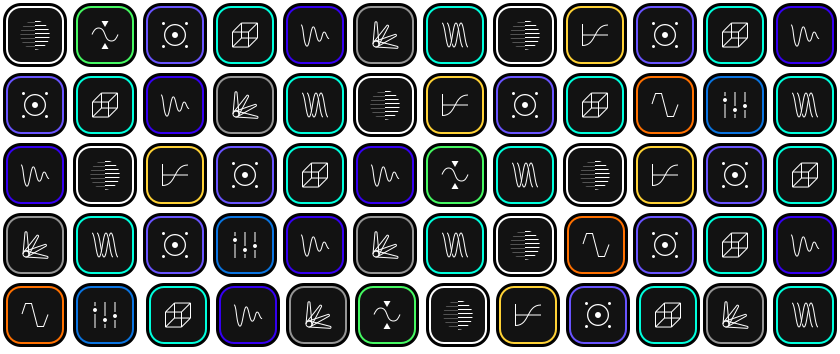
Virtual Device List

NC Virtual Device 200

Factory Reset

Factory Reset 1

Press-and-hold EXIT, CAPTURE, and Footswitch II for 2 seconds.


Factory Reset 2

The LEDs will light up. GAIN, Footswitch I and II will turn blue.


Calibration 004

While the LEDs are lit, press-and-hold SAVE until the Nano Cortex reboots. All user data will then be removed.


Warning!

Performing a factory reset will remove all user content, including Neural Captures, Presets, and Impulse Responses from your device. This action cannot be undone.

Hardware Specifications

INSTRUMENT INPUT
  • CONNECTOR: 1/4 TRS-F

  • IMPEDANCE: 1MΩ

  • MAX INPUT LEVEL: +10dBu


COMBO CAPTURE INPUT
  • CONNECTOR: XLR-F + 1/4 TRS-F

  • TS IMPEDANCE: 1MΩ

  • XLR IMPEDANCE: 45kΩ

  • MAX INPUT LEVEL: +10dBu

  • BOOST GAIN: +26dB


TRS OUTPUTS 1L/2R
  • CONNECTOR: (2) 1/4 TRS-F

  • IMPEDANCE: 560Ω

  • MAX OUTPUT LEVEL: +10dBu (Unbalanced) / +16dBu (Balanced)


HEADPHONES OUTPUT
  • CONNECTOR: 3.5MM TRS-F

  • MAX OUTPUT POWER: 55mW into 20Ω


EXP/MIDI INPUTS
  • EXPRESSION CONNECTOR: 1/4 TRS-F

  • MIDI CONNECTOR: MIDI TRS Type A


USB AUDIO
  • FORMAT: USB Audio Class 2.0 Compliant

  • CHANNELS: 7 (4IN/3OUT)

  • AUDIO CLOCK: 48 kHz (FIXED)


GENERAL
  • FINISH: Anodized aluminum unibody

  • CONTROLS:
    2 Stainless Steel Stomp + Rotary Footswitches
    7 Knobs
    2 Analog Switches
    5 Digital Switches

  • DIMENSIONS: 14.4 x 10.3 x 6.2 cm / 5.6 x 4.0 x 2.4"

  • WEIGHT: 620g / 1.36lbs

  • INPUT VOLTAGE:
    9-12V DC 600mA (Center Negative)
    USB-C 5V, 1.5A or higher


ENVIRONMENTAL INFORMATION
  • OPERATING TEMP: 0 to 50 °C (32 to 122 °F)

  • STORAGE TEMP: -10 to 70 °C (14 to 158 °F)

  • HUMIDITY: Maximum non-condensing


Disclaimer

In the interest of continuous improvement, specifications for the Nano Cortex are subject to change without notice. For any questions, please feel free to contact us at support@neuraldsp.com.

Regulatory Information

REGULATORY INFORMATION FCC

FCC § 15.19 Labelling Requirements

This device complies with part 15 of the FCC Rules and ISED license-exempt RSS standard(s). Operation is subject to the following two conditions:

(1) This device may not cause harmful interference, and

(2) this device must accept any interference received, including interference that may cause undesired operation.

FCC § 15.21 Information To User

Changes or modifications not expressly approved by the party responsible for compliance could void the user’s authority to operate the equipment.

RF Exposure Requirements

This equipment complies with FCC and IC radiation exposure limits set forth for an uncontrolled environment. This equipment should be installed and operated with minimum distance of 20 cm between the radiator and your body.

This transmitter must not be co-located or operating in conjunction with any other antenna or transmitter.

FCC §15.105 Statement

This equipment has been tested and found to comply with the limits for a Class B digital device, pursuant to part 15 of the FCC Rules. These limits are designed to provide reasonable protection against harmful interference in a residential installation.

This equipment generates, uses and can radiate radio frequency energy and, if not installed and used in accordance with the instructions, may cause harmful interference to radio communications. However, there is no guarantee that interference will not occur in a particular installation.

If this equipment does cause harmful interference to radio or television reception, which can be determined by turning the equipment off and on, the user is encouraged to try to correct the interference by one or more of the following measures:

  • Reorient or relocate the receiving antenna.

  • Increase the separation between the equipment and receiver.

  • Connect the equipment into an outlet on a circuit different from that to which the receiver is connected.

  • Consult the dealer or an experienced radio/TV technician for help.

REGULATORY INFORMATION ISED

Le présent appareil est conforme aux CNR d'ISED applicables aux appareils radio exempts de licence. L'exploitation est autorisée aux deux conditions suivantes:

(1) l'appareil ne doit pas produire de brouillage, et

(2) l'utilisateur de l'appareil doit accepter tout brouillage radioélectrique subi, même si le brouillage est susceptible d'en compromettre le fonctionnement.

RF Exposure Requirements

This equipment complies with Canada radiation exposure limits set forth for an uncontrolled environment. This equipment should be installed and operated with minimum distance 20cm between the radiator and your body.

Déclaration d’exposition aux Radiations

Cet équipement est conforme aux limites d’exposition aux rayonnements IC établies pour un environnement non contrôlé. Cet équipement doit être installé et utilisé avec un minimum de 20 cm de distance entre la source de rayonnement et votre corps.

Ce transmetteur ne doit pas être place au même endroit ou utilise simultanément avec un autre transmetteur ou antenna.

Canada Class B Statement

This Class B digital apparatus complies with Canadian ICES-003.

Cet appareil numérique de la classe B est conforme à la norme NMB-003 du Canada.


Neural DSP®, Neural Capture®, Capture®, Quad Cortex®, Nano Cortex®, Archetype®, Algorithmically Perfect®, and Nameless® are registered trademarks of Neural DSP Technologies Oy.